

Coupon Management
Coupons allow healthcare providers to offer promotional discounts on services, products and packages, run campaigns, and manage sponsored/funded treatments. Mazecare's Coupon module integrates directly with active payment providers (such as Stripe Connect) to automatically synchronize discount codes and apply them during patient-facing online checkouts.
This guide walks you through accessing the coupon menu, creating and configuring coupons, understanding sync behavior, and how coupons are validated on the patient checkout portal.
Accessing the Coupons Menu
To manage coupons, navigate to the Operations dashboard:
- Log in to the Mazecare OS provider dashboard.
- In the left navigation sidebar, click on Operations (represented by the Factory icon or via URL
/operations). - Click on the Coupons sub-module card (represented by the Ticket icon or via URL
/operations/coupons).
Coupon Table
The Coupon Table acts as the central dashboard for all active and historical coupons in your clinic network.
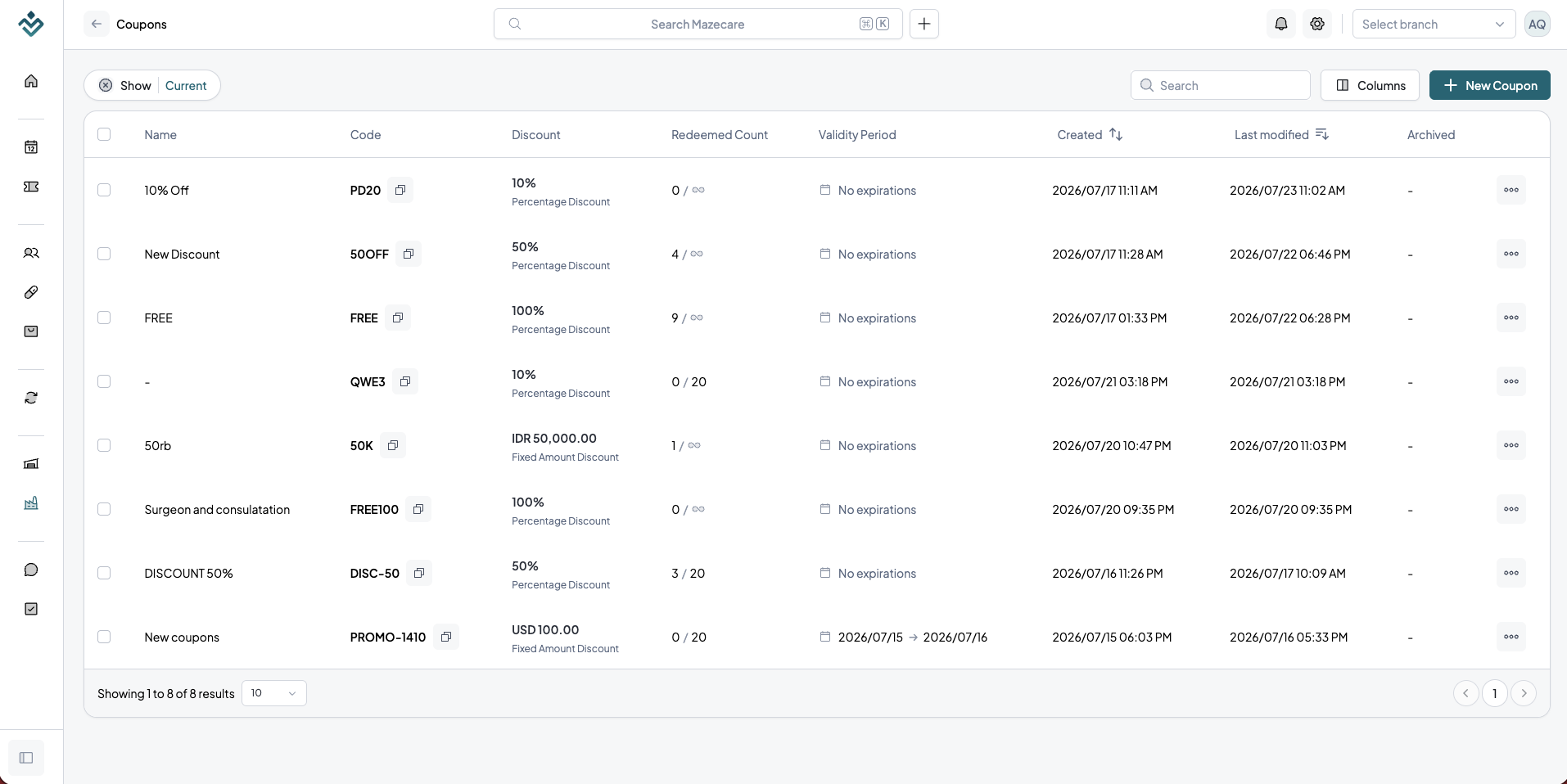
The table displays the following key information for each coupon:
- Name: The internal descriptive name of the promotion (e.g., Summer Wellness Campaign 2026).
- Code: The exact alphanumeric text the patient enters at checkout (e.g.,
SUMMER26). - Discount: The value and structure of the discount (e.g., 15% Off or Fixed $20.00 USD).
- Redeemed Count: The number of times the coupon has been applied to successfully completed checkouts.
- Validity: The active date range of the promotion (Start Date to End Date).
From this table, you can:
- Use the search bar at the top-left to query coupons by Name or Code.
- Click New Coupon at the top-right to open the creation wizard.
- Click on any row to open the Coupon Details page, or select rows and click Delete to retire active coupons.
Creating a New Coupon
Click the New Coupon button to open the creation form modal.
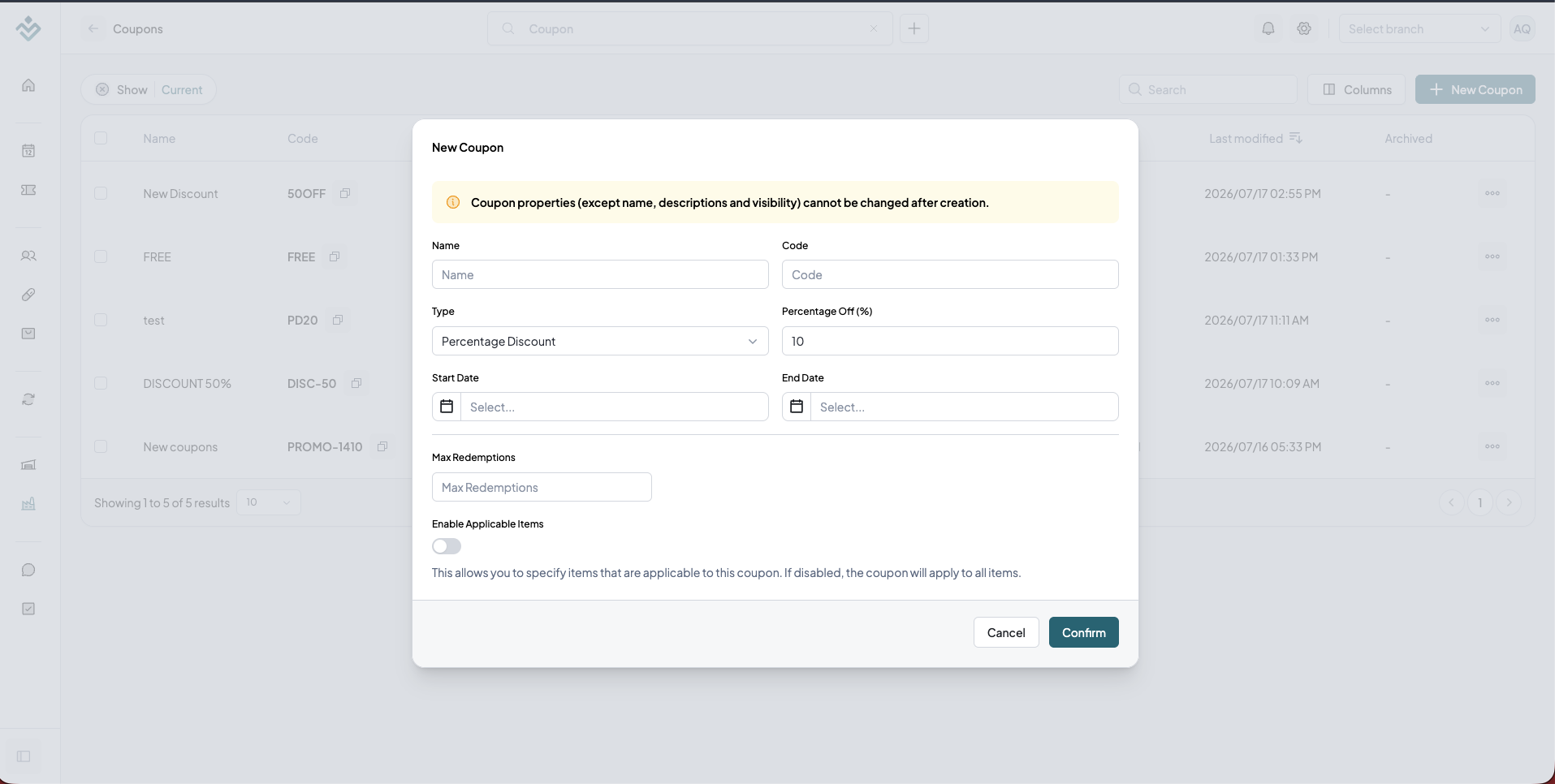
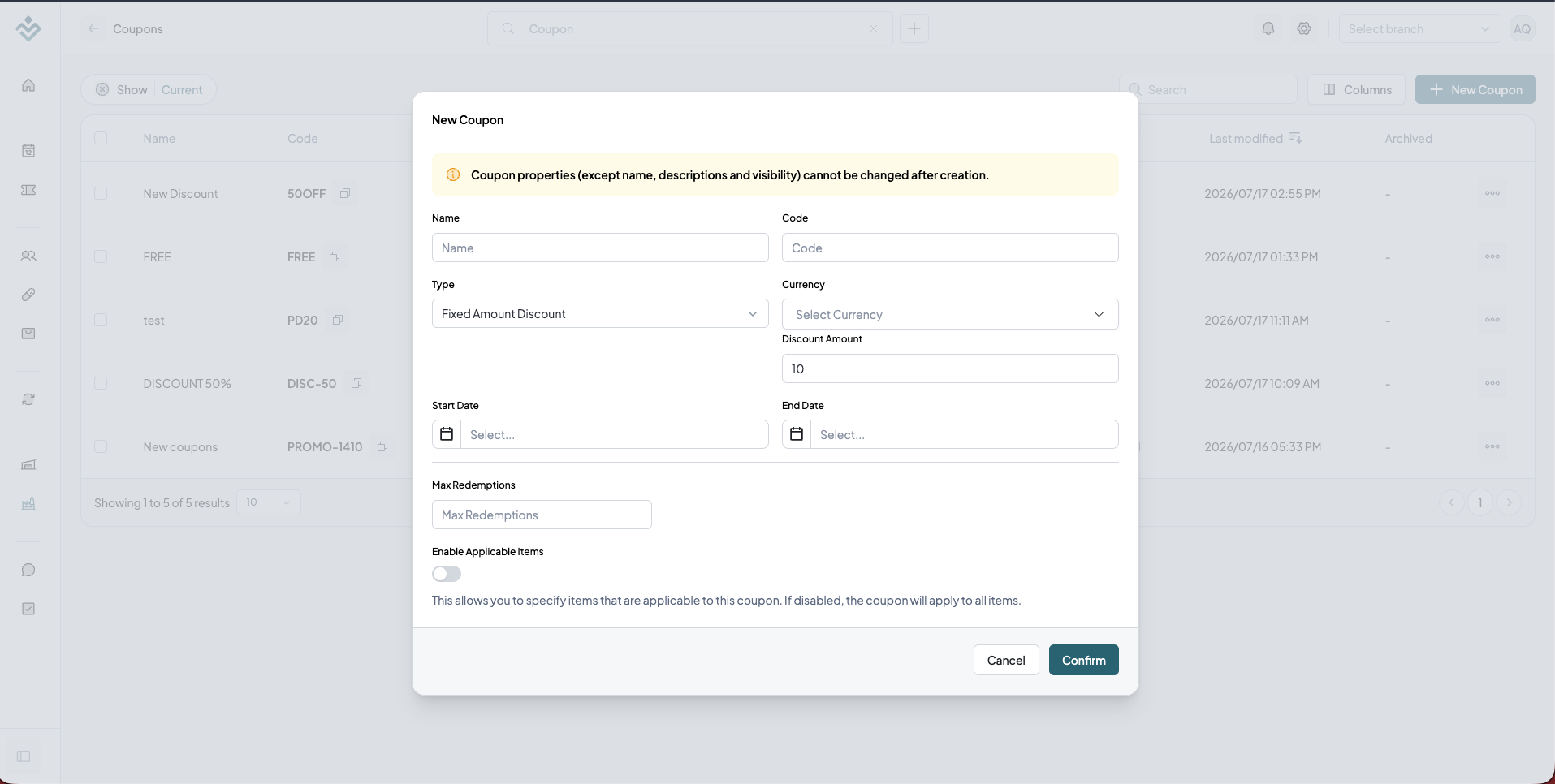
!WARNING Restrictions: To maintain accounting integrity and prevent payment reconciliation issues, most fields cannot be changed once the coupon has been saved.
Explanation of Fields
| Field | Requirement | Description / Behavior |
|---|---|---|
| Name | Required | Descriptive label used internally for reporting and identification. |
| Code | Required | The unique text entered by patients to redeem the discount. Input Restrictions: Only uppercase letters, lowercase letters, numbers, and hyphens (A-Z, a-z, 0-9, -) are allowed. Any other characters (spaces, symbols, punctuation) are dynamically cleaned from the input. |
| Type | Required | Choose how the discount is calculated: • Percentage Discount: Deducts a percentage off the cart total. • Fixed Amount Discount: Deducts a flat currency rate. |
| Percentage Off / Amount | Required | • For Percentage: Enter a value between 0 and 100. • For Fixed: Enter a decimal value (e.g., 1000) and select the corresponding Currency (e.g., USD, HKD, SGD). |
| Effective Start Date | Optional | The date from which the coupon becomes active. Applied at 00:00:00 UTC of the selected day. Defaults to current date if left blank. |
| Effective End Date | Optional | The expiration date of the coupon. Valid until 23:59:59 UTC of the selected day. Leave blank for no expiration. |
| Max Redemption Count | Optional | The global limit of how many times this coupon can be redeemed across all patients. Leave empty for unlimited uses. |
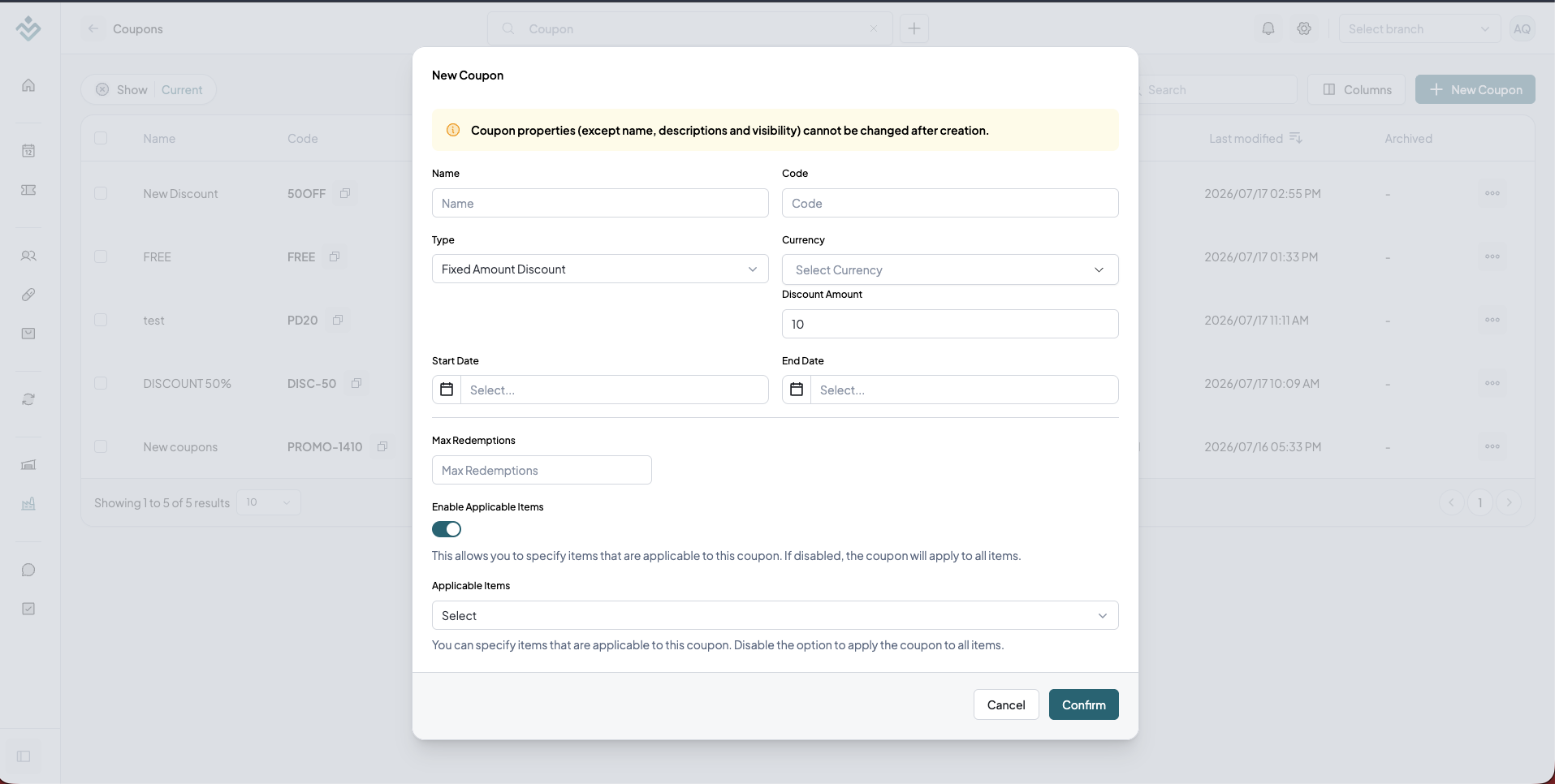
| Is Enable Applicable Items | Optional | Toggle switch to restrict the discount to certain items. When enabled, displays the Applicable Items field. |
The Two-Step Synchronization Wizard
Upon clicking Confirm, the system runs an automated setup wizard:
- Creating Coupon: Saves the coupon data securely in the Mazecare database.
- Syncing to Payment Providers: Mazecare queries all active payment integrations (e.g., Stripe Connect) and registers the coupon details directly on their platforms. This ensures checkout sessions generated via payment links or web widgets recognize the discount code.
- Success Checklist: Displays a checklist showing which providers have synced successfully. If any sync fails, it alerts the administrator to resolve configuration conflicts.
Coupon Details View
Clicking a coupon row in the table opens the comprehensive detail view. Here, clinic administrators can manage the lifecycle, assign funding, and verify integration sync health.
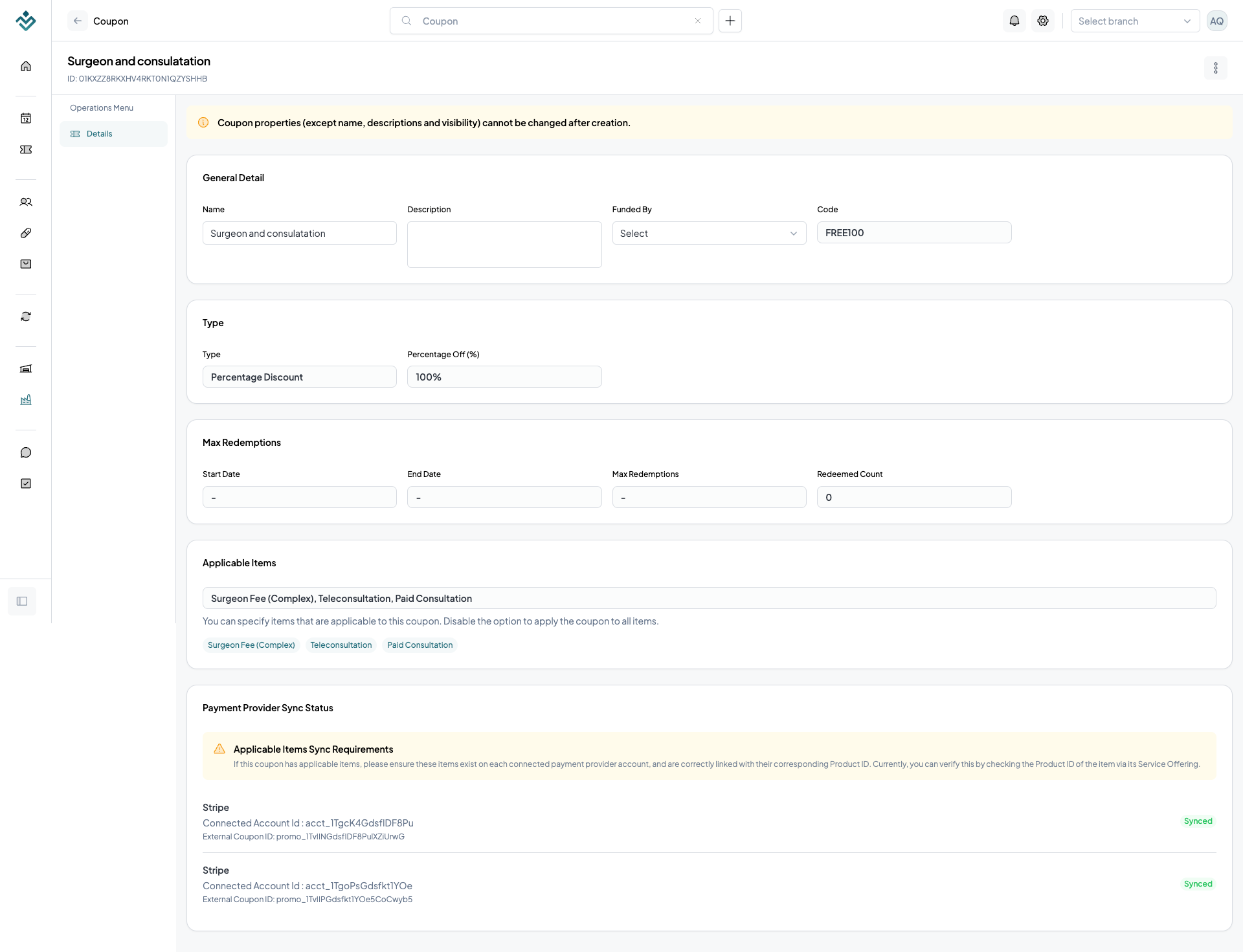
Editable vs. Read-Only Fields
To prevent downstream billing discrepancies:
- Editable: Name, Description, Funded By can be modified.
- Read-Only: Coupon Code, Discount Type, and Discount Amount/Percentage remain locked.
Funding Entity Association
The Funded By field allows linking the coupon to a specific Doctor or Branch entity in the clinic network. This designates which balance sheet absorbs the promotional cost, which is crucial for accounting logs, reporting modules, and revenue split workflows.
Payment Provider Sync Panel
At the bottom of the details page, the Payment Provider Sync Status panel displays the synchronization state with external payment gateways (e.g., Stripe Connect):
- Lists all connected accounts, their sync status (e.g.,
SYNCED,FAILED,PENDING), and the external gateway Coupon ID. - If a sync failed due to network issues or API restrictions, it displays a detailed error message and provides a Retry button.
- If the coupon expiration date has passed, a warning banner is shown, and sync buttons are deactivated since expired coupons cannot be updated on the gateways.
Patient Checkout Integration
During checkout on the patient booking app, coupons are validated on-the-fly when applied.
Coupon Validation Rules
The patient portal applies the following rules in sequence before recalculating the cart total:
- Existence: The code must match an existing coupon registered under the clinic's tenant.
- Active Status: The coupon must not be soft-deleted or marked as inactive.
- Date Validity: The current time (UTC) must fall within the coupon's start and end date window (if configured).
- Redemption Limits: The coupon's current
redeemedCountmust be strictly less than itsmaxRedemptionCount. - Gateway Verification: The coupon must have a status of
SYNCEDon the payment provider configured for the checkout channel. Unsynchronized coupons are blocked. - Item Applicability: If the coupon lists specific
applicableItemIds, the patient's selected service offering must match one of those IDs. Otherwise, a "not applicable to this service" error is thrown. - Currency Alignment: For fixed discount coupons, the coupon must contain a discount amount defined in the currency matching the checkout order (e.g., a HKD checkout cannot accept a coupon configured only with USD amount).
Email & Notifications
How to create and customize email message templates using Liquid variables, bind them to appointment templates, and set up automated notifications and reminders.
Maze.care Listing
How to configure and list your branches, doctors, service offerings, and appointment schedules on the public Maze.care directory to enable patient self-booking.