

User API Key & API Integration
Mazecare provides a secure client credential system that allows external clients and automated workflows to interact with internal GraphQL APIs. Using user API keys, systems can retrieve authentication tokens and execute operations on behalf of the associated user.
Detailed Step-by-Step Walkthrough
Step 1: Generate a New API Key on the Platform
API keys are managed on a per-user basis under the Access Management settings:
- Log in to Mazecare as an Administrator.
- Navigate to Settings (
/settings) from the main sidebar.
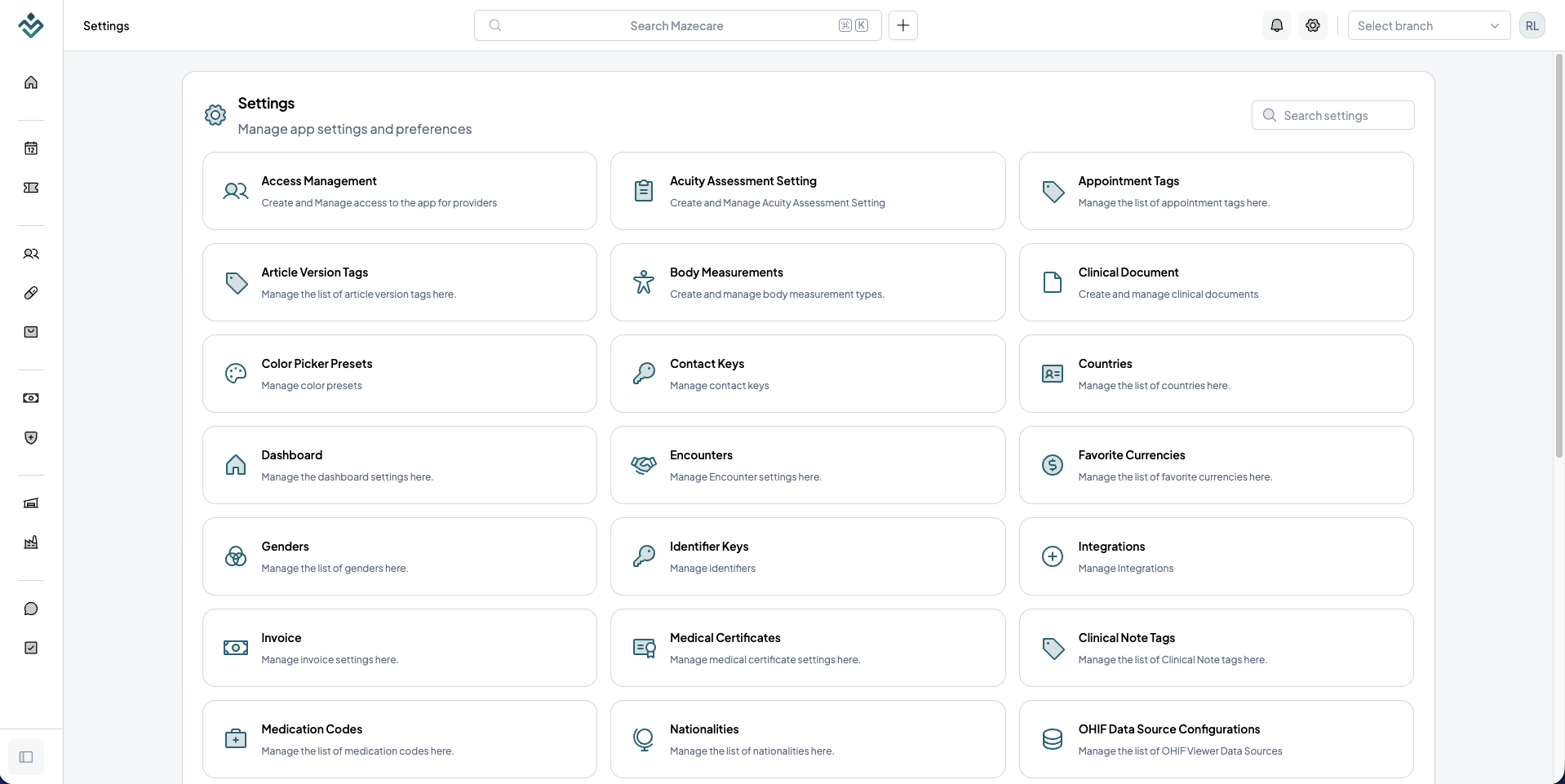
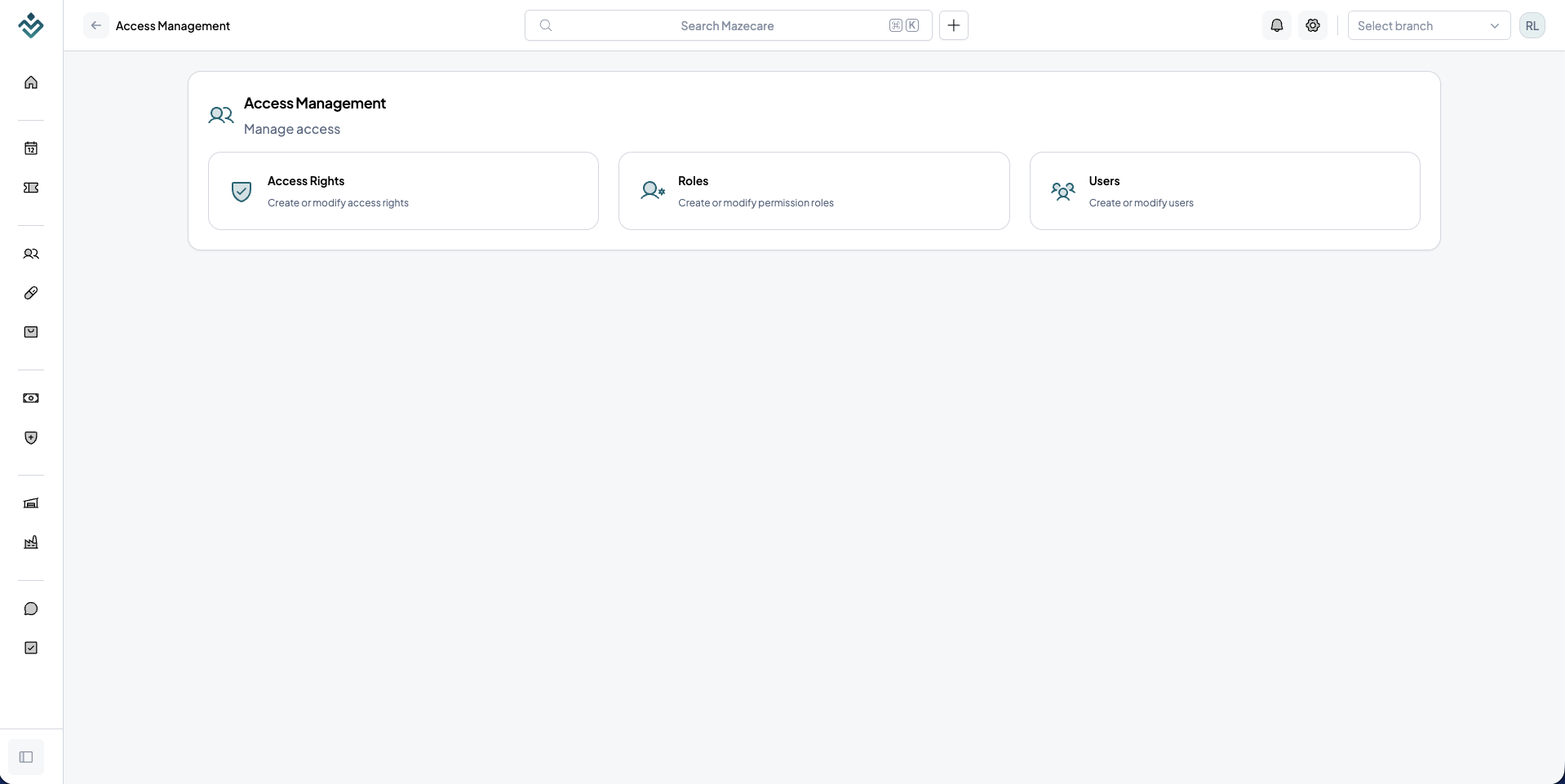
- Click on Access Management > Users (
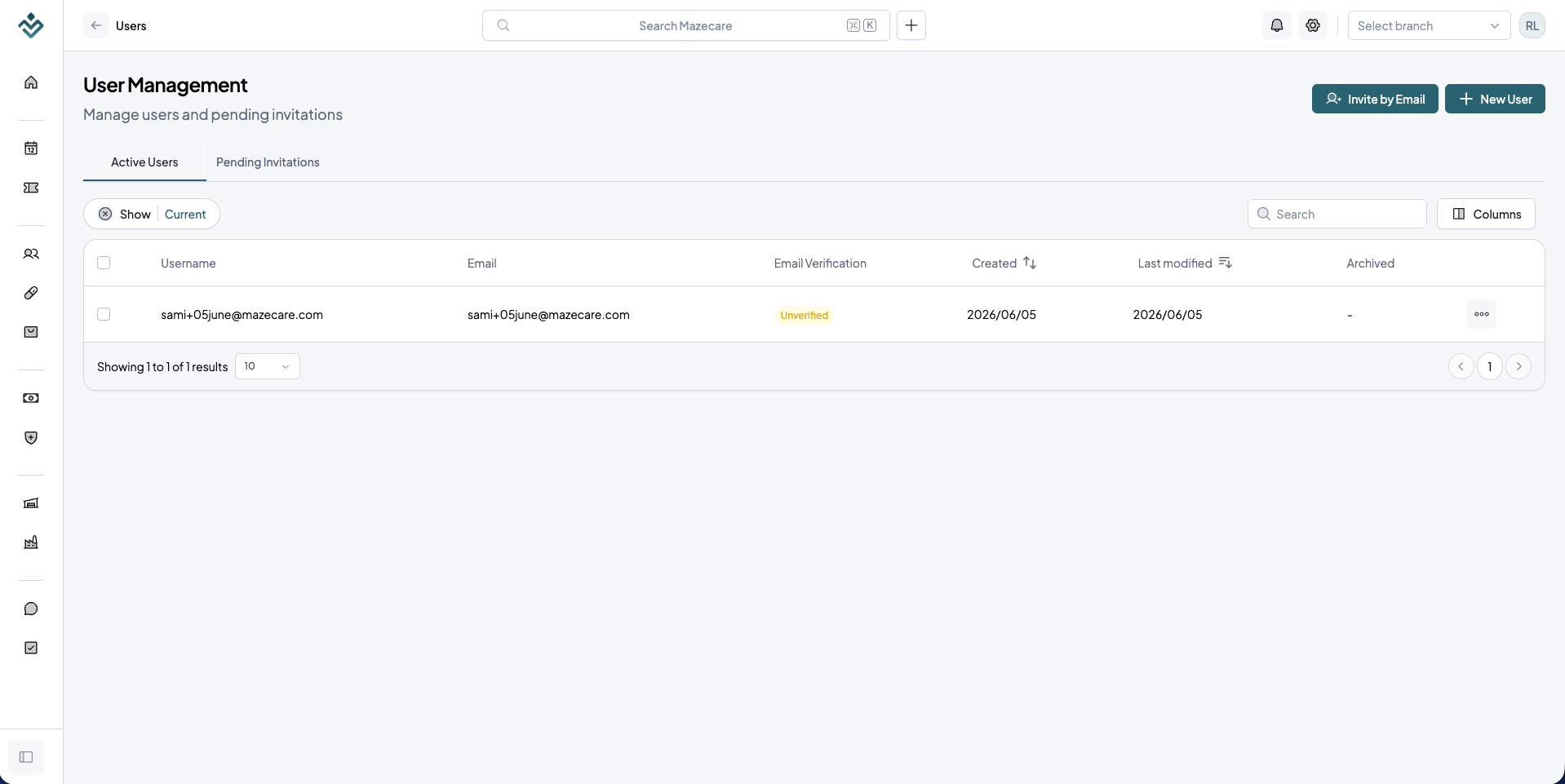
/settings/access-management/users) to view the user list.
- Select the target user by clicking on their row or name. This will open the User Details view.
- In the left-hand tab navigation panel of the User Details layout, click on the API Keys tab (represented by a briefcase icon). This loads the API keys management page.
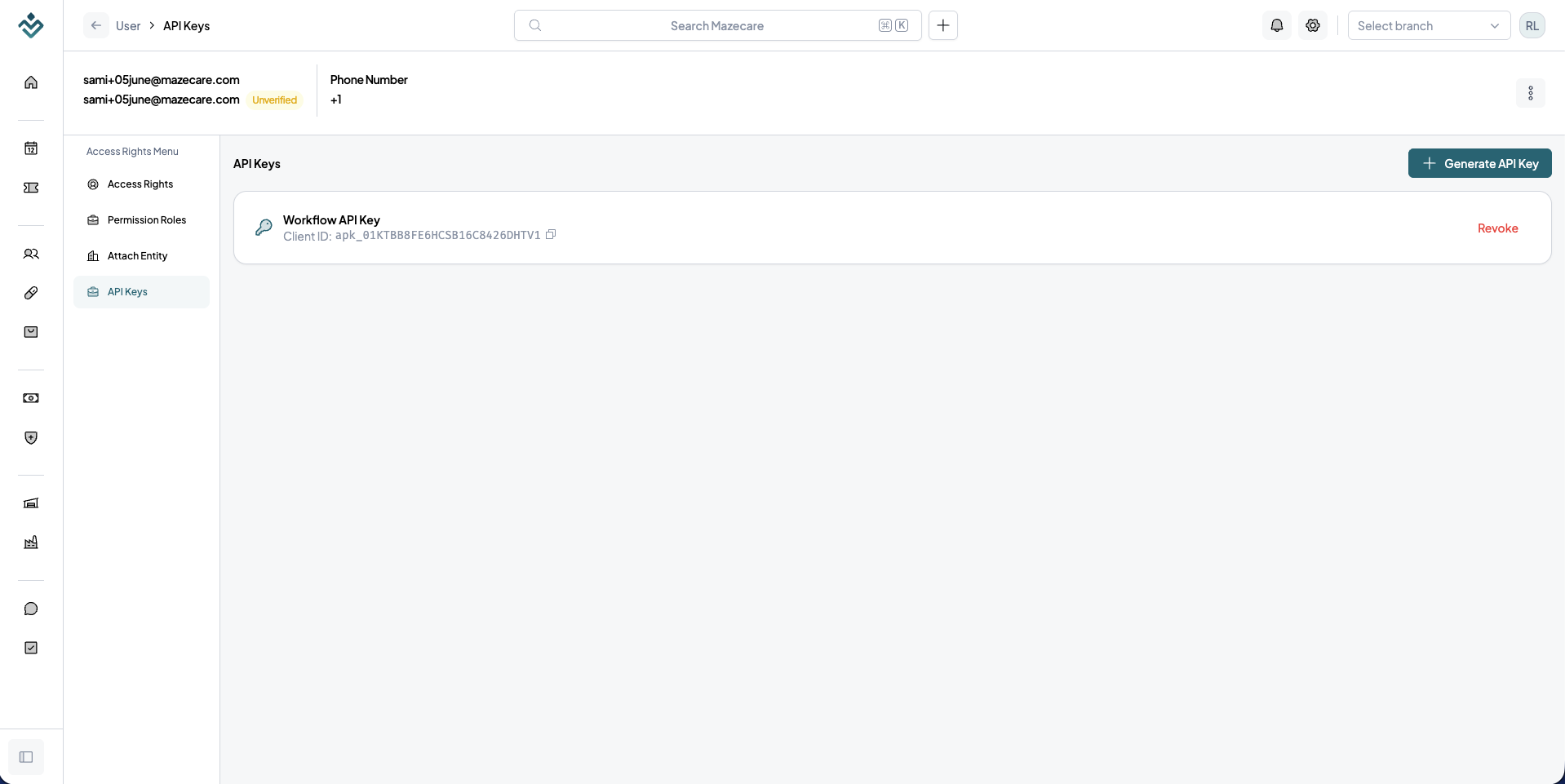
- Click the Generate API Key button (plus icon) in the top right corner.
- In the Generate API Key modal, enter a descriptive name for the key in the Name input field (e.g., "Outpatient Workflow Sync").
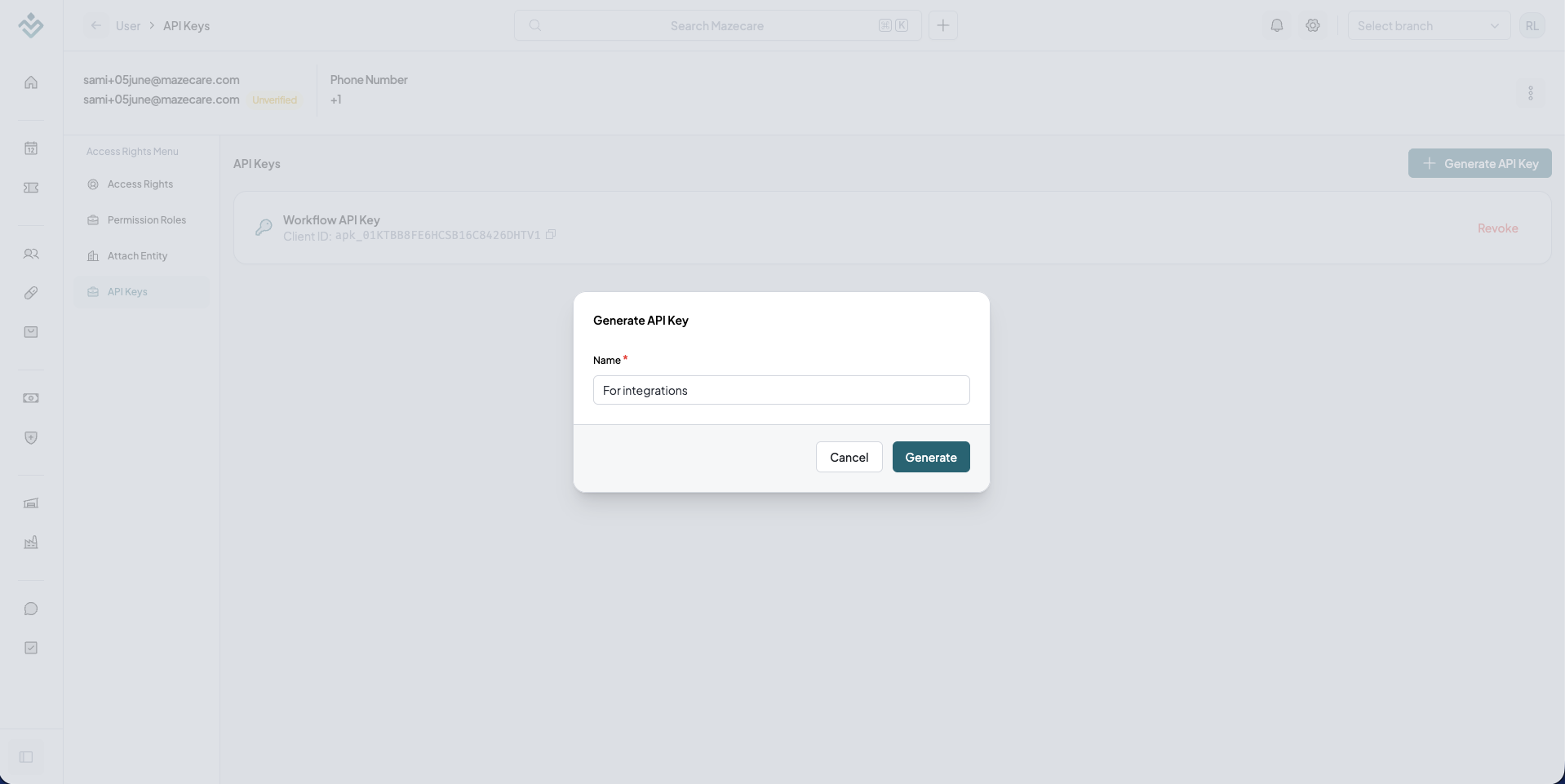
- Click the Generate button in the modal footer to execute the action.
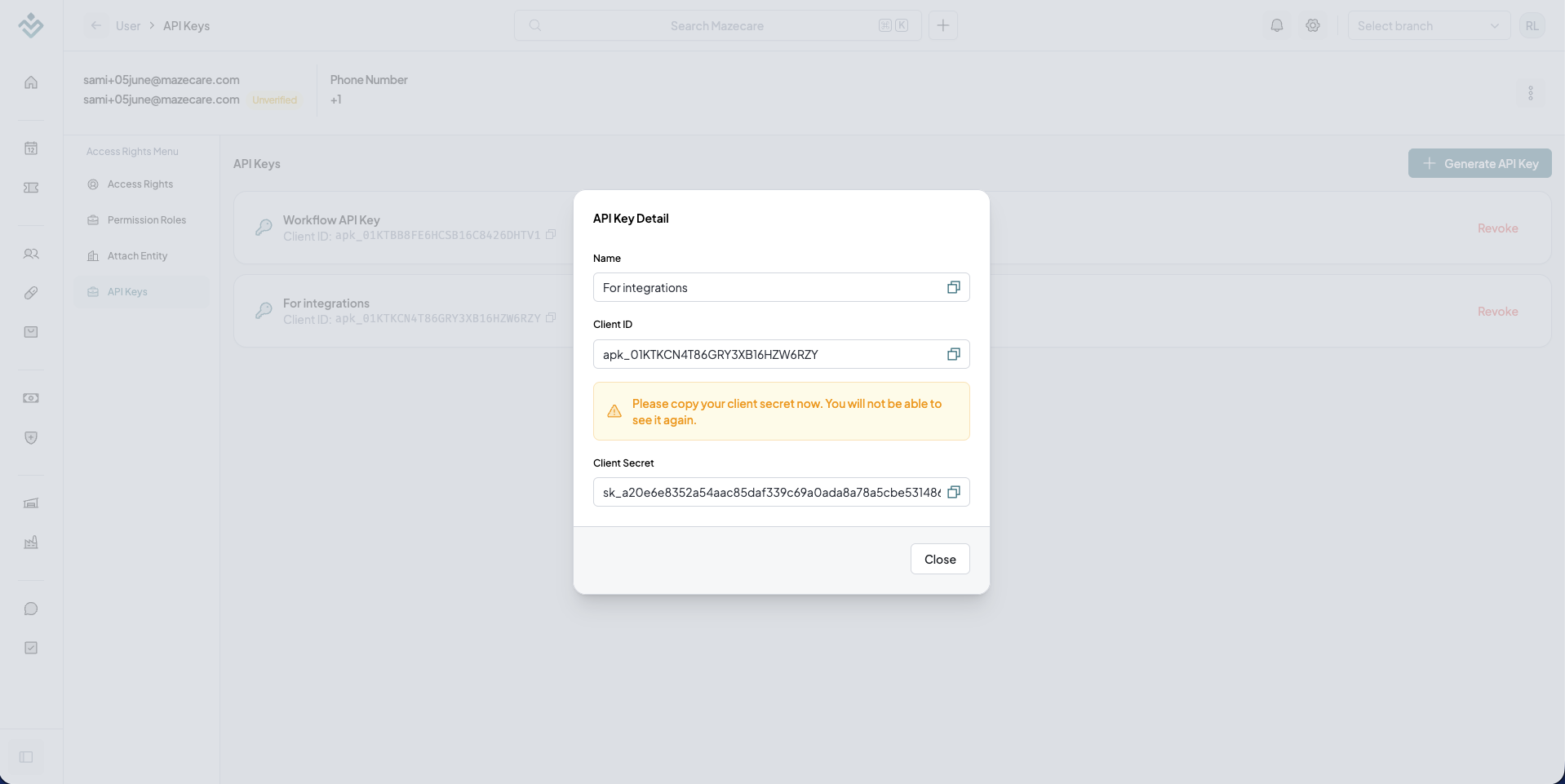
- Review and copy the generated credentials:
- Name: The label you gave this key.
- Client ID: The public client identifier.
- Client Secret: The secret key password.
Step 2: Authenticate and Generate an Access Token
To communicate with the GraphQL API, you must exchange your Client ID and Client Secret for a temporary JSON Web Token (JWT) using the generateClientCredentialsToken mutation.
Send a POST request to your GraphQL endpoint (typically https://api-hk.mazecare.com/graphql):
You can also visit the endpoint URL directly in your web browser to open the GraphQL Playground. This provides an interactive UI to check all existing APIs, inspect the complete schema definition, and run queries and mutations in real-time.
Active Playground: https://api-hk.mazecare.com/graphql
GraphQL Mutation
mutation GenerateClientCredentialsToken($input: ClientCredentialsTokenInput!) {
  generateClientCredentialsToken(input: $input) {
    access_token
  }
}
Example HTTP Request (cURL)
Replace <client-id> and <client-secret> with your generated credentials:
curl -X POST https://api-hk.mazecare.com/graphql \
  -H "Content-Type: application/json" \
  -d '{
    "query": "mutation GenerateClientCredentialsToken($input: ClientCredentialsTokenInput!) { generateClientCredentialsToken(input: $input) { access_token } }",
    "variables": {
      "input": {
        "clientId": "<client-id>",
        "clientSecret": "<client-secret>"
      }
    }
  }'
Example HTTP Response
A successful exchange returns a JWT access token:
{
  "data": {
    "generateClientCredentialsToken": {
      "access_token": "eyJhbGciOiJIUzI1NiIsInR5cCI6IkpXVCJ9..."
    }
  }
}
Step 3: Call Mazecare APIs (Example: List Appointments)
Once you have retrieved the access_token, include it in the Authorization header as a Bearer token: Authorization: Bearer <access_token> to call any GraphQL query or mutation.
For example, to list the first 10 appointments in the system:
GraphQL Query
query ListAppointmentsForGlobalSearch($where: AppointmentFilterInput) {
  listAppointments(take: 10, where: $where) {
    totalCount
    pageInfo {
      hasNextPage
    }
    items {
      id
      title
      startDateTimeUtc
      endDateTimeUtc
    }
  }
}
Example HTTP Request (cURL)
curl -X POST https://api-hk.mazecare.com/graphql \
  -H "Content-Type: application/json" \
  -H "Authorization: Bearer eyJhbGciOiJIUzI1NiIsInR5cCI6IkpXVCJ9..." \
  -d '{
    "query": "query ListAppointmentsForGlobalSearch($where: AppointmentFilterInput) { listAppointments(take: 10, where: $where) { totalCount pageInfo { hasNextPage } items { id title startDateTimeUtc endDateTimeUtc } } }",
    "variables": {
      "where": {}
    }
  }'
Node.js / Fetch Example
const GRAPHQL_URL = 'https://api-hk.mazecare.com/graphql';

async function fetchAppointments(accessToken) {
  const query = `
    query ListAppointmentsForGlobalSearch($where: AppointmentFilterInput) {
      listAppointments(take: 10, where: $where) {
        items {
          id
          title
          startDateTimeUtc
          endDateTimeUtc
        }
      }
    }
  `;

  const response = await fetch(GRAPHQL_URL, {
    method: 'POST',
    headers: {
      'Content-Type': 'application/json',
      'Authorization': `Bearer ${accessToken}`
    },
    body: JSON.stringify({
      query,
      variables: { where: {} }
    })
  });

  const { data, errors } = await response.json();
  if (errors) {
    console.error('GraphQL Errors:', errors);
    return [];
  }
  return data.listAppointments.items;
}
Step 4: Revoke an API Key
If an API key is compromised, rotated, or no longer needed, you can permanently deactivate it:
- Under the API Keys tab, locate the key in the list.
- Click the red Revoke button on the right side of the card.
- In the confirmation dialog ("Are you sure you want to revoke this API key?"), click Confirm.
- The API key is permanently deleted and all subsequent requests using these credentials will be rejected immediately.