

Google Calendar & Meet Integration
Mazecare integrates with Google Services to streamline clinic scheduling and virtual consultations. By linking your Google account, you can sync appointments to your personal calendar, detect scheduling conflicts with external events, and automatically generate Google Meet links for telehealth sessions.
This guide walks you through the step-by-step process of adding a Google Integration, configuring calendar sync settings, and setting up virtual appointment schedules.
Detailed Step-by-Step Walkthrough
Step 1: Connect Your Google Account
First, navigate to the user integrations dashboard to link your Google credentials:
- Log in to the Mazecare OS dashboard as a Provider or Administrator.
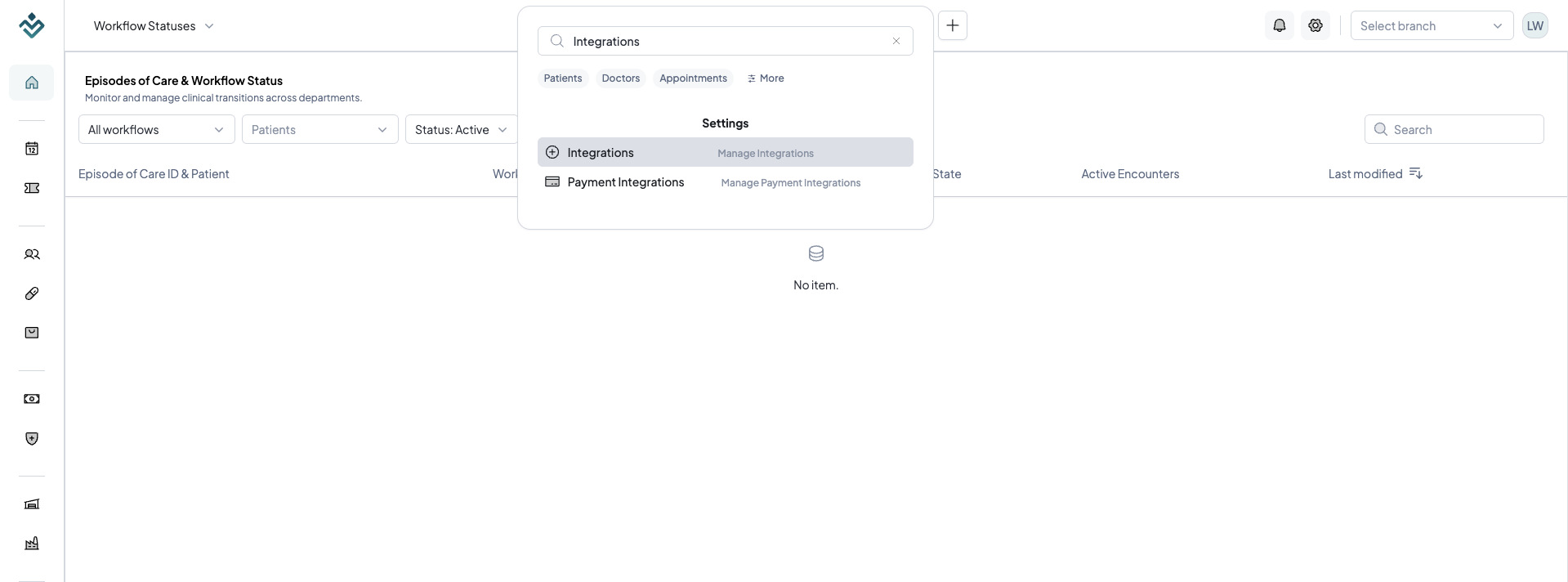
- Click the Global Search input box in the top-center navigation bar, or press the Cmd + K (Mac) or Ctrl + K (Windows/Linux) keyboard keys to focus the search field instantly.
- Type
integrationsin the search bar and select Integrations under the Settings category to navigate to/settings/integrations.
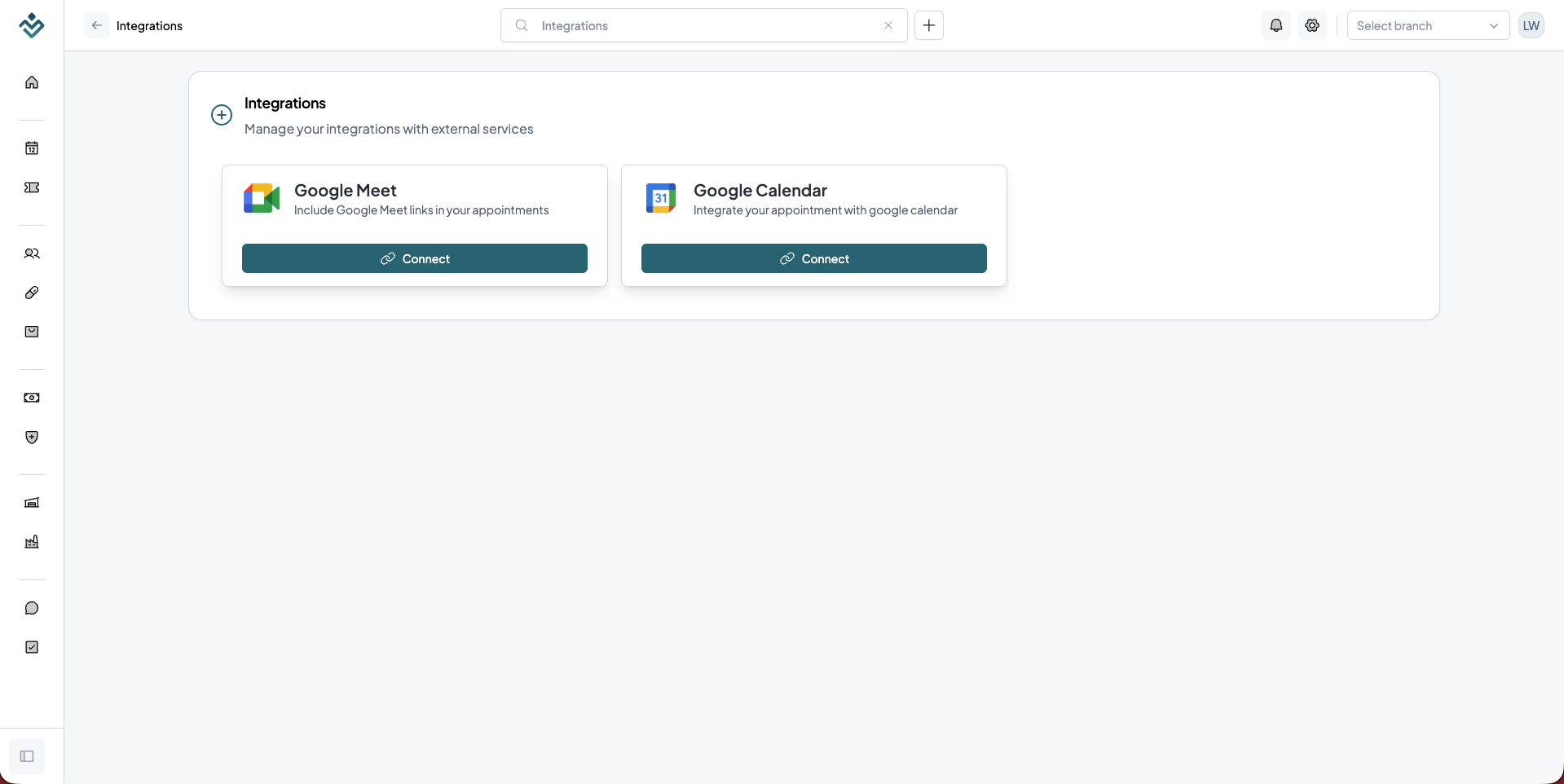
- Locate either the Google Meet or Google Calendar card and click the Connect button.
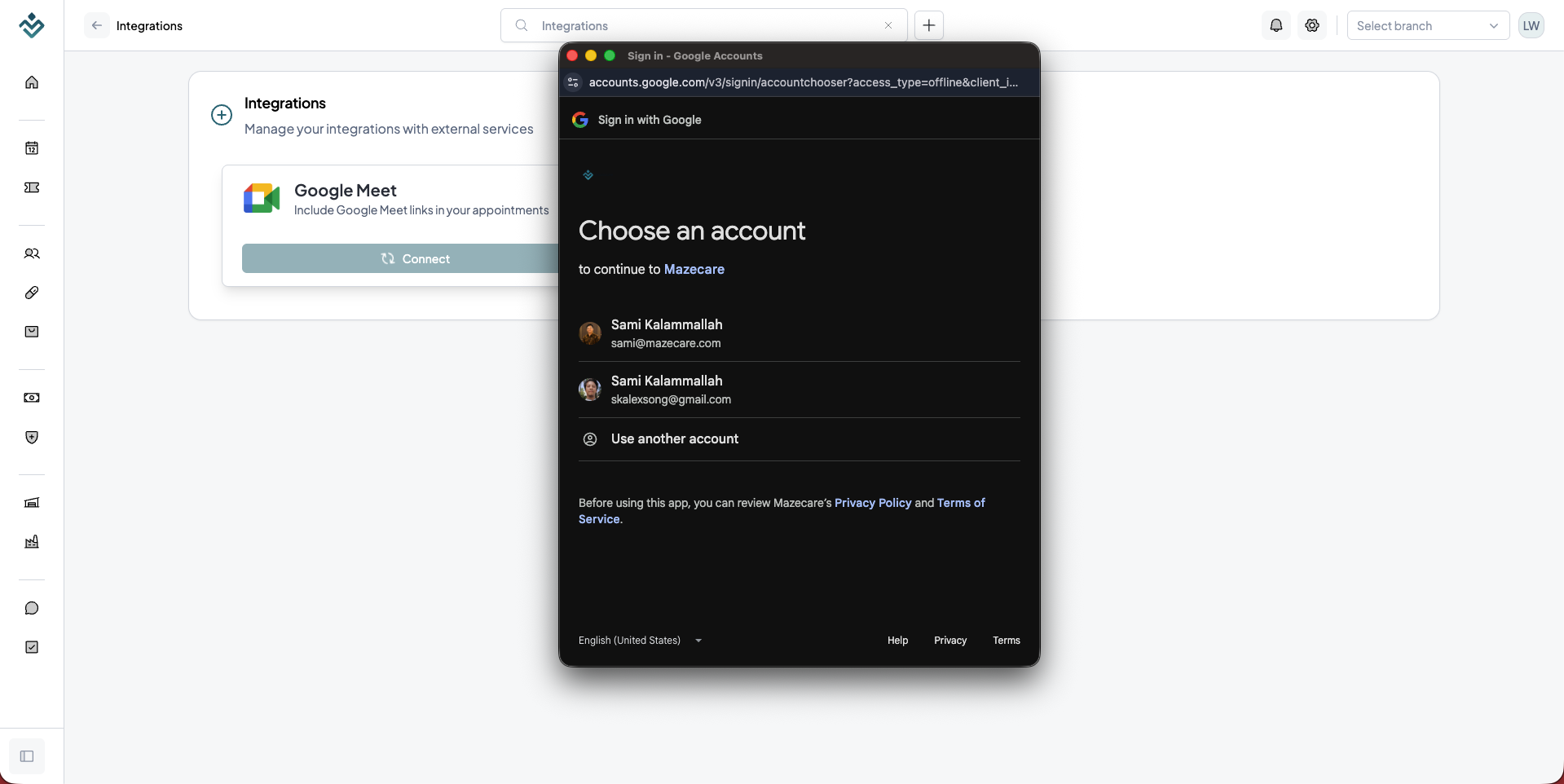
- In the Google OAuth popup window:
- Select your preferred Google account.
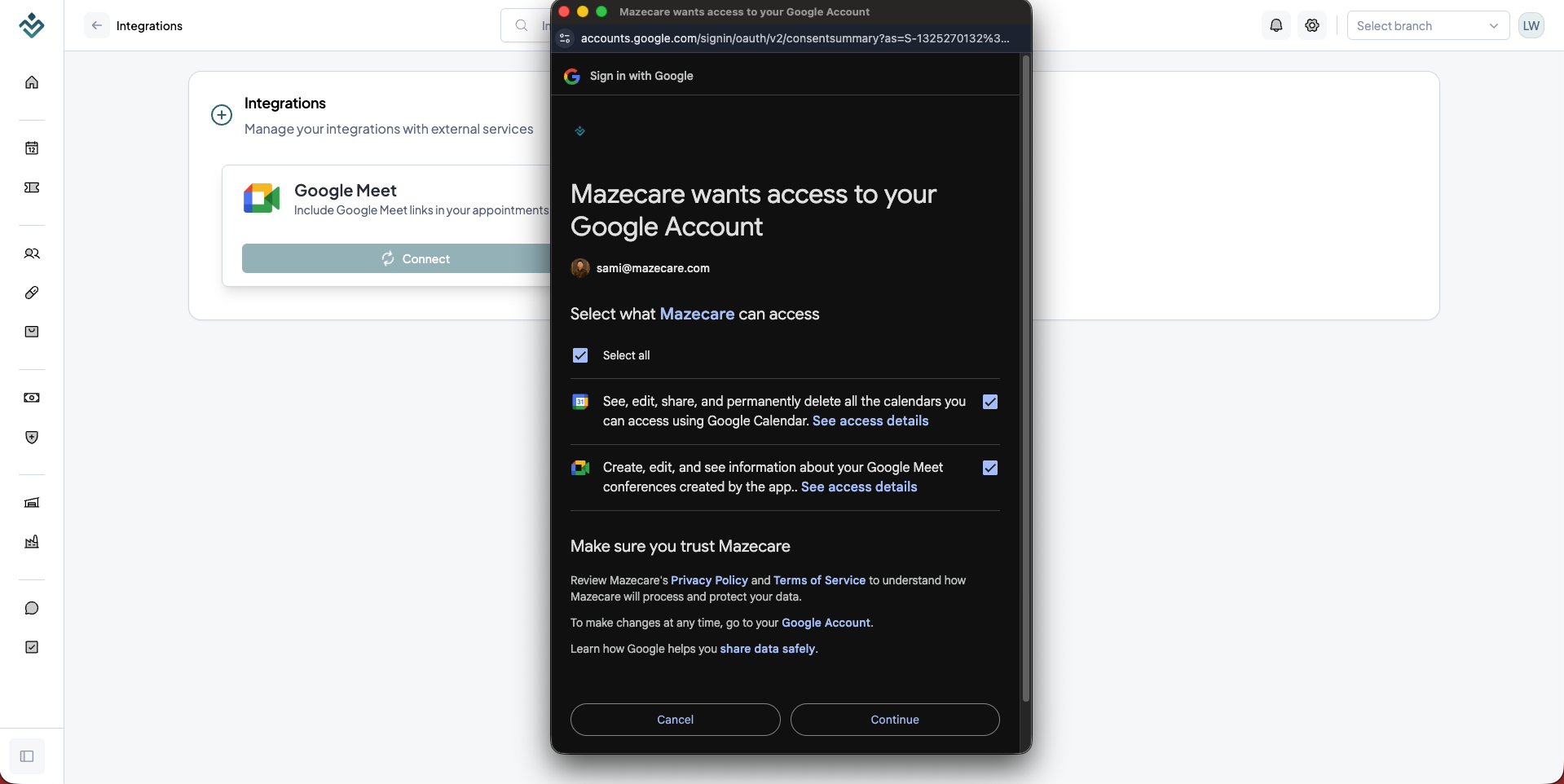
- Authorize and grant all requested permissions. The required scopes include:
- Google Calendar API (
.../auth/calendar) to read and write calendar events. - Google Meet API (
.../auth/meetings.space.created) to create video conference spaces. - User Profile Info to retrieve and display your connected email address.
- Google Calendar API (
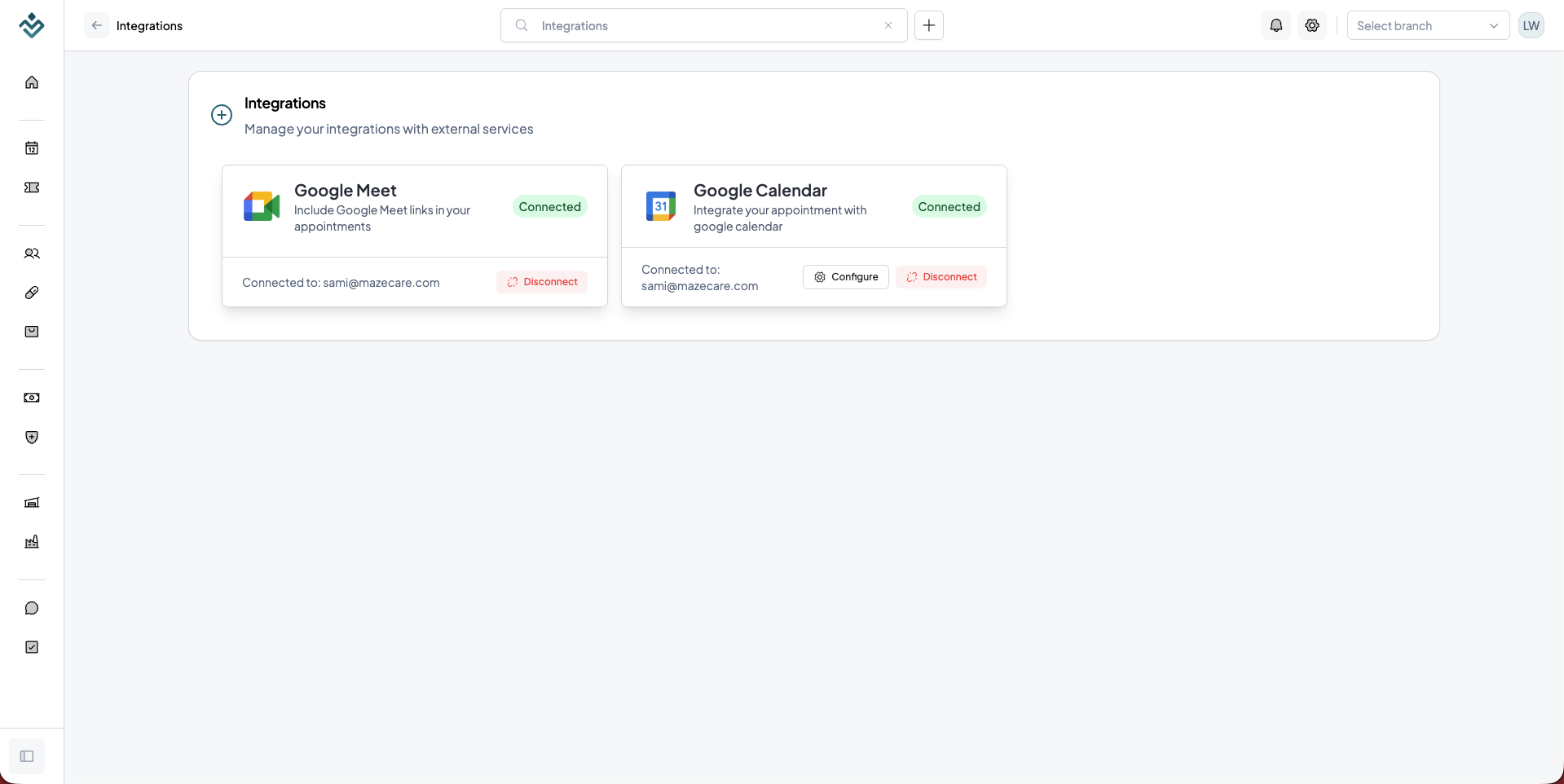
- Once authorized, both the Google Calendar and Google Meet cards will display a Connected badge along with your linked email address.
Step 2: Configure Google Calendar Sync Settings
After connecting your account, set up how Mazecare interacts with your external Google calendars:
- Locate the Google Calendar card on the Integrations page.
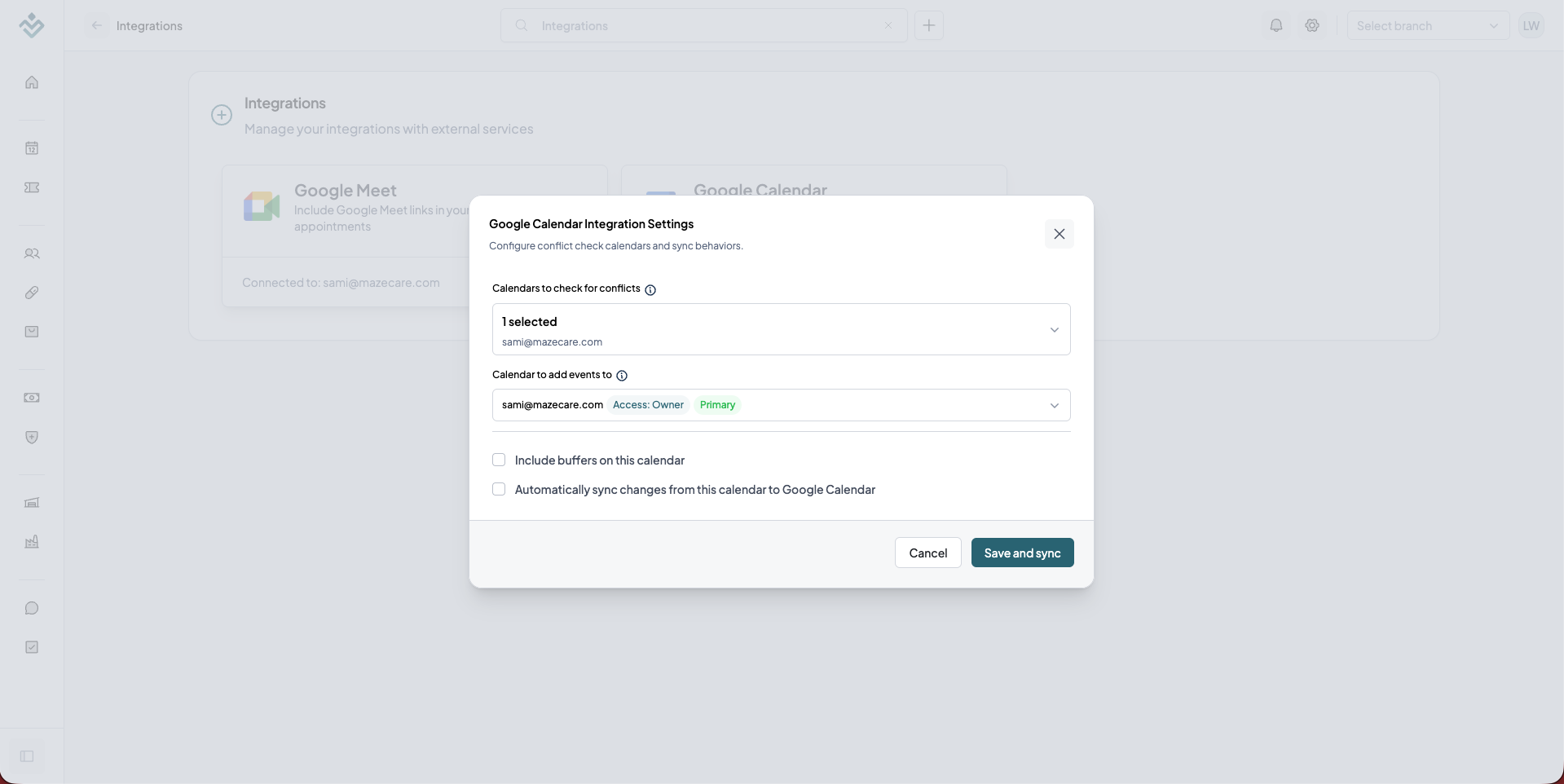
- Click the Configure button to open the Sync Settings modal.
- Configure the following parameters:
- Check Conflicts Calendar: Select the external Google calendars you want Mazecare to monitor. When a patient books an appointment, the system checks these calendars to ensure you do not have any overlapping personal events or external meetings.
- Target Calendar: Choose the Google calendar where newly booked Mazecare appointments will be automatically written.
- Include Buffers: Check this option if you want to respect the start/end buffers configured on your Mazecare appointment templates during conflict checks.
- Auto Sync Changes: Check this option to automatically sync any updates or cancellations between Mazecare and Google Calendar.
- Click Save and Sync to apply the configuration and perform the initial event synchronization.
Step 3: Create a Virtual Appointment Schedule with Google Meet
With the Google integration connected, configure your appointment schedules to use Google Meet as the virtual consultation provider:
- Navigate to the operations dashboard for your Doctor Profile or Branch:
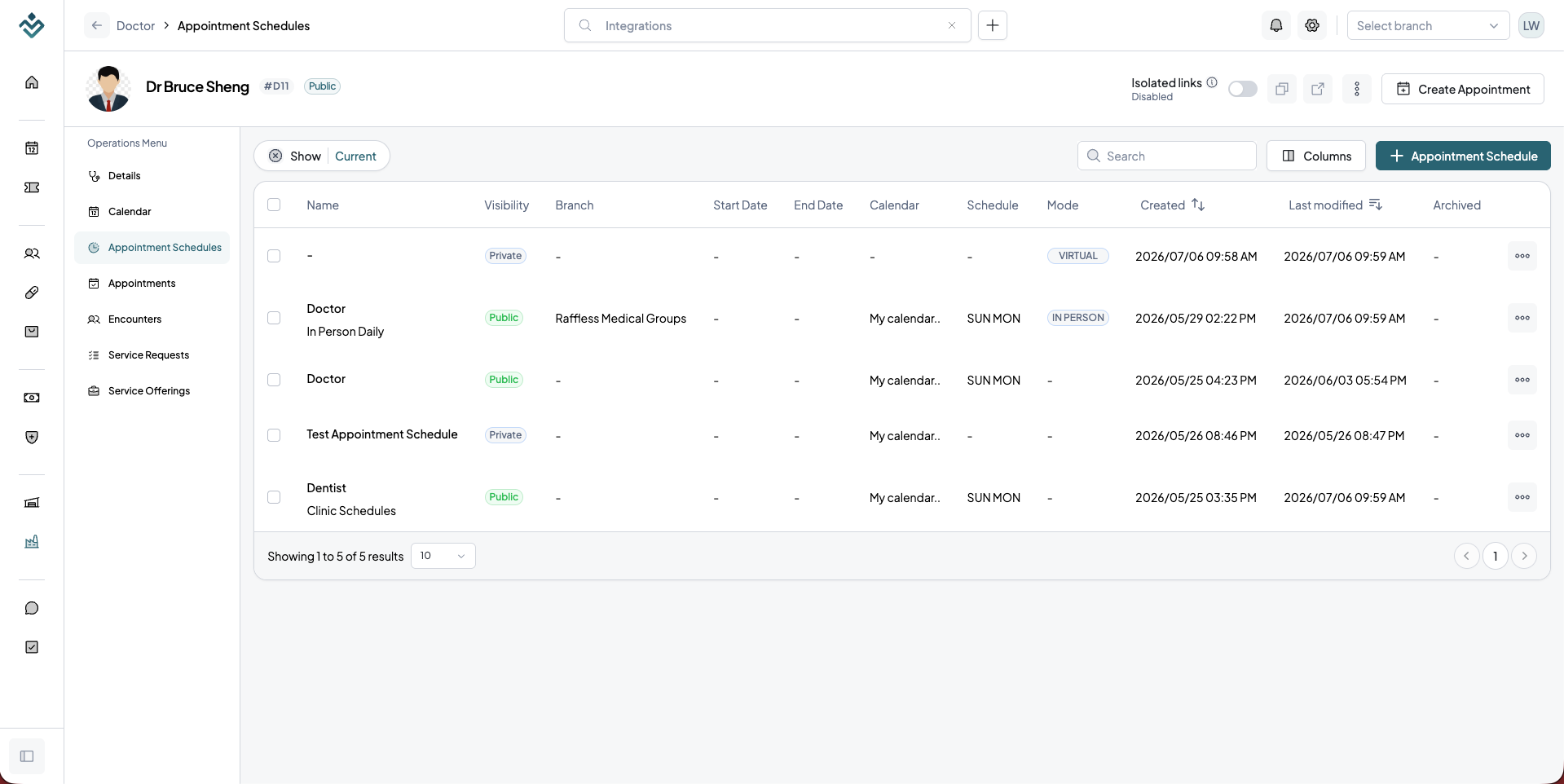
- For Doctors: Navigate to Operations > Doctors > [Select Doctor] > Appointment Schedules.
- For Branches: Navigate to Operations > Branches > [Select Branch] > Appointment Schedules.
- Click + Appointment Schedule (or select an existing schedule to edit it).
- Set the schedule Mode to Virtual. (Important: Make sure to have the Google Integration set up first for Virtual mode to work with Google Meet)
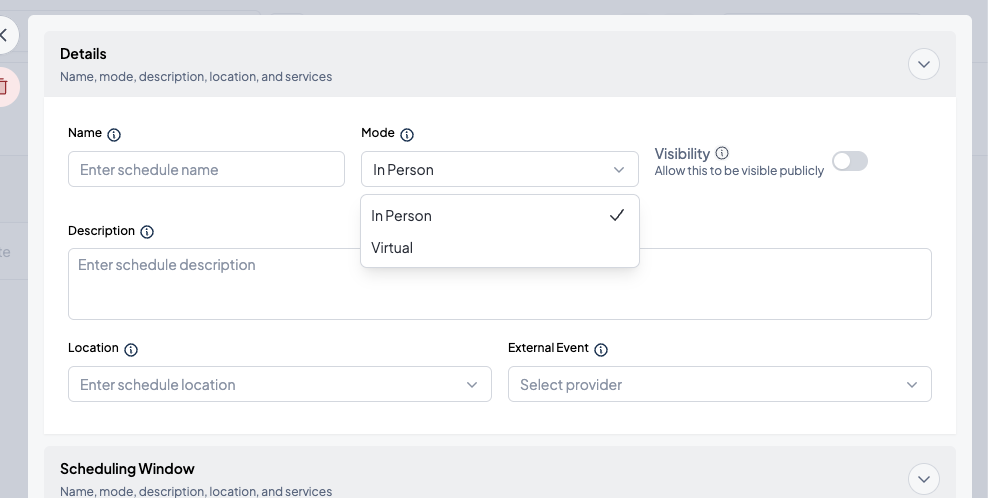
- In the Video Conference dropdown menu, select Google Meet as the video provider.
- In the host configuration section that appears, select the host user account linked to your connected Google Integration.
- Do the same for External Events so that it will create a Google Calendar Events on your Google Calendar.
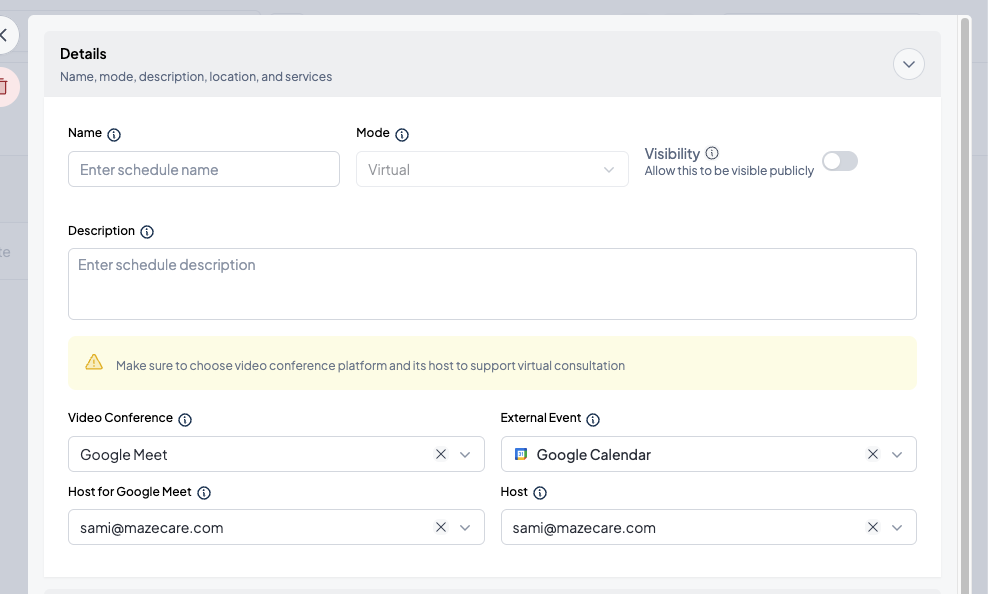
- Configuration will be saved automatically once you exit the settings or calendar, you don't need to click save button.
Step 4: Verify the Telehealth Booking Flow
When a patient books an appointment from a virtual schedule configured with Google Meet:
- The system automatically creates a unique Google Meet space for that session via the host's connected integration.
- Mazecare assigns the generated Google Meet join link to the appointment details page.
- The patient and doctor can join the video consultation directly by clicking Join Consultation in their respective portals or reminder notifications.