

Stripe Connect Integration
Mazecare integrates with Stripe Connect to securely process patient self-booking payments, co-pays, and online deposits. By linking your Stripe accounts, you can route booking revenues directly to your clinic branches or individual performers (doctors).
This guide walks you through the step-by-step process of adding a new payment account and completing the Stripe-hosted onboarding workflow.
Detailed Step-by-Step Walkthrough
Step 1: Access Payment Integrations
First, navigate to the payment integrations settings panel:
- Log in to the Mazecare OS dashboard as an Administrator.
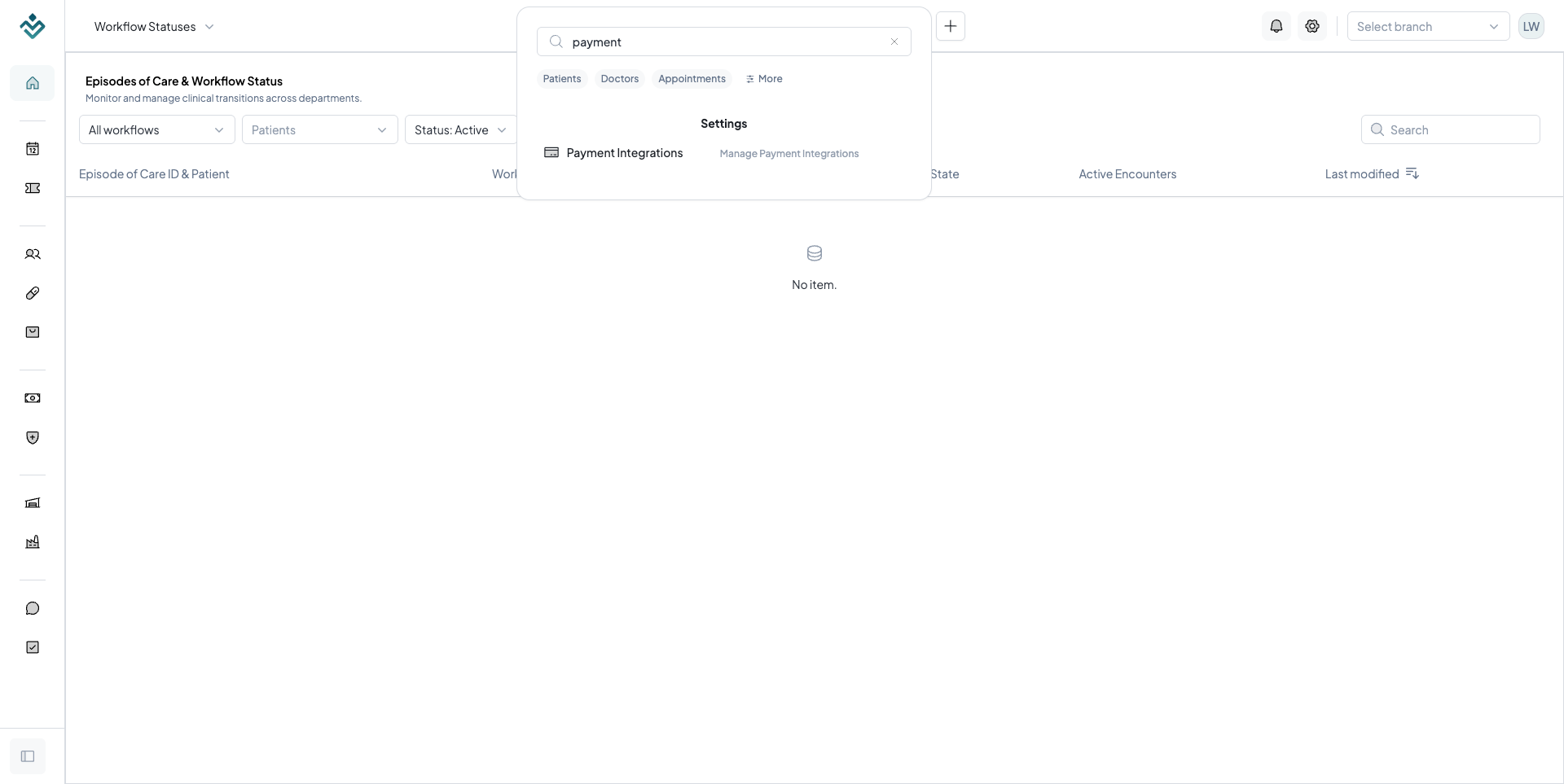
- Click the Global Search input box in the top-center navigation bar, or press the Cmd + K (Mac) or Ctrl + K (Windows/Linux) keyboard keys to focus the search field instantly.
- Type
paymentorintegrationsin the search bar. - Under the Settings category, click on Payment Integrations to navigate to
/settings/payment-integrations.
Step 2: Add Stripe Connected Account
Initiate the account creation and choose your operating country:
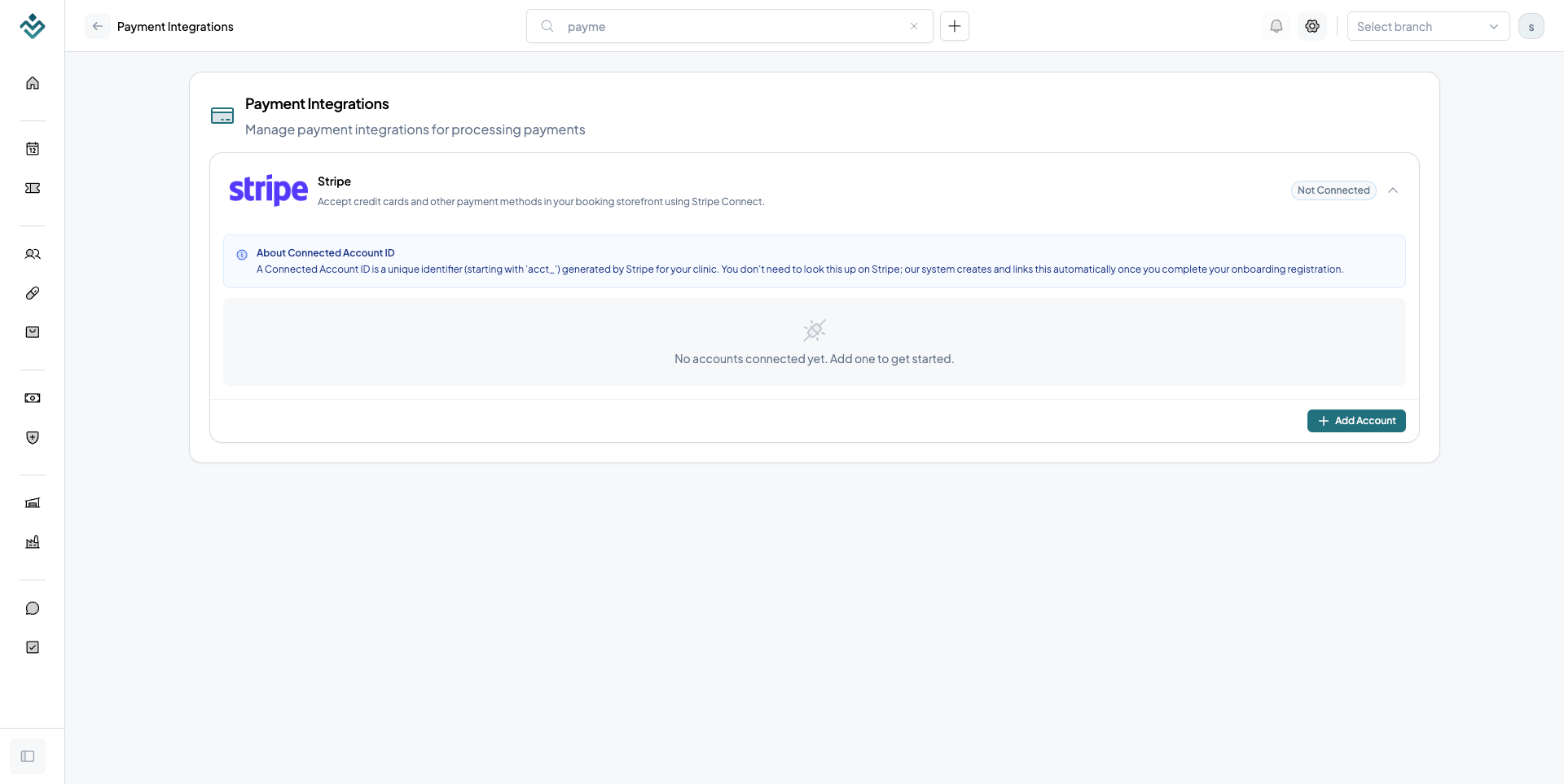
- Locate the Stripe provider card on the Payment Integrations page.
- Click the Add Account button inside the card.
- In the country selection modal, choose your Business Country from the dropdown menu (e.g., Singapore, Indonesia, Malaysia, United States).
- Click Confirm to proceed.
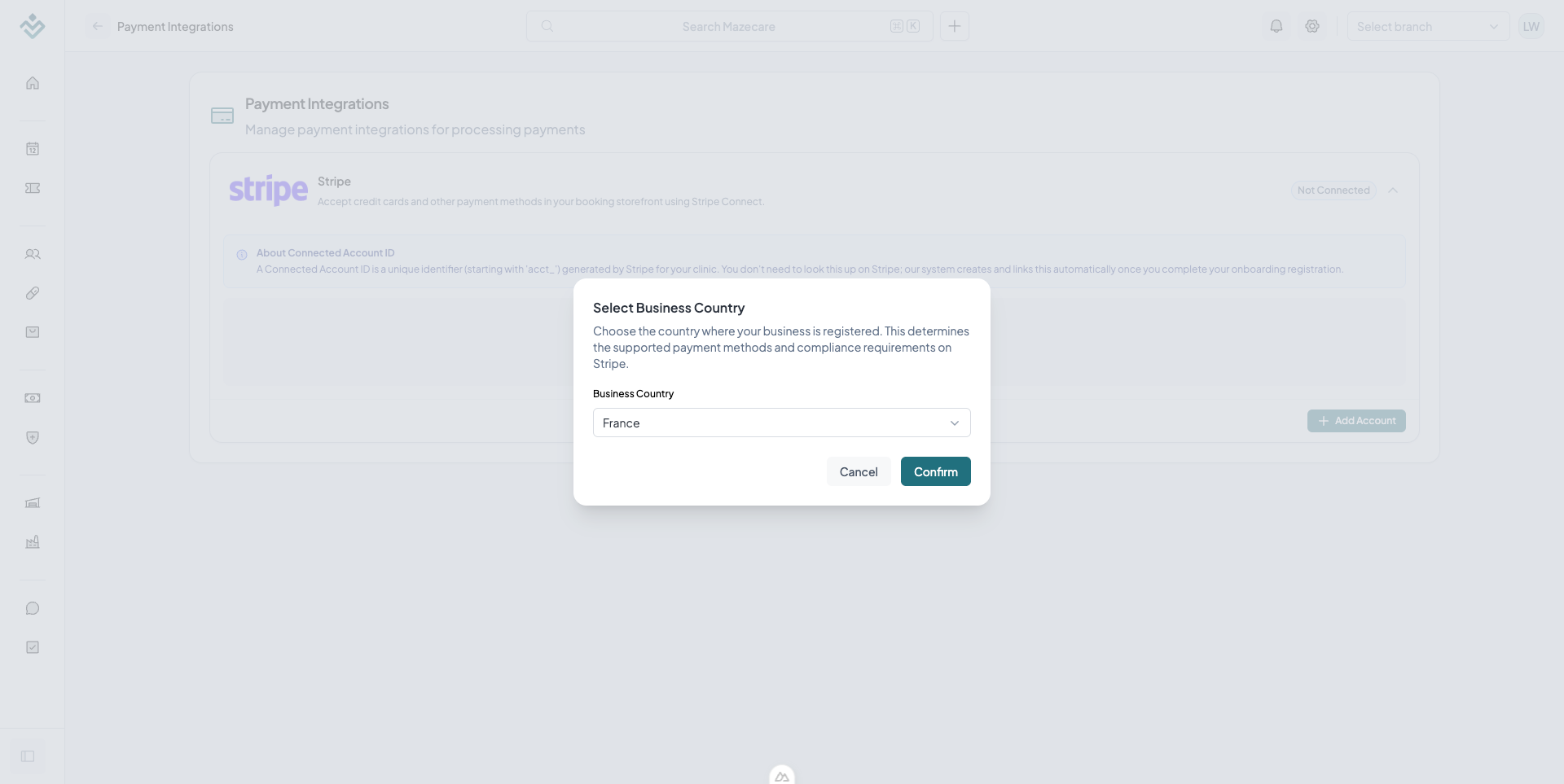
!NOTE The country you select must match the country where your business is legally registered. This determines the supported payment methods, currency options, and Stripe compliance regulations.
Step 3: Complete Stripe Onboarding
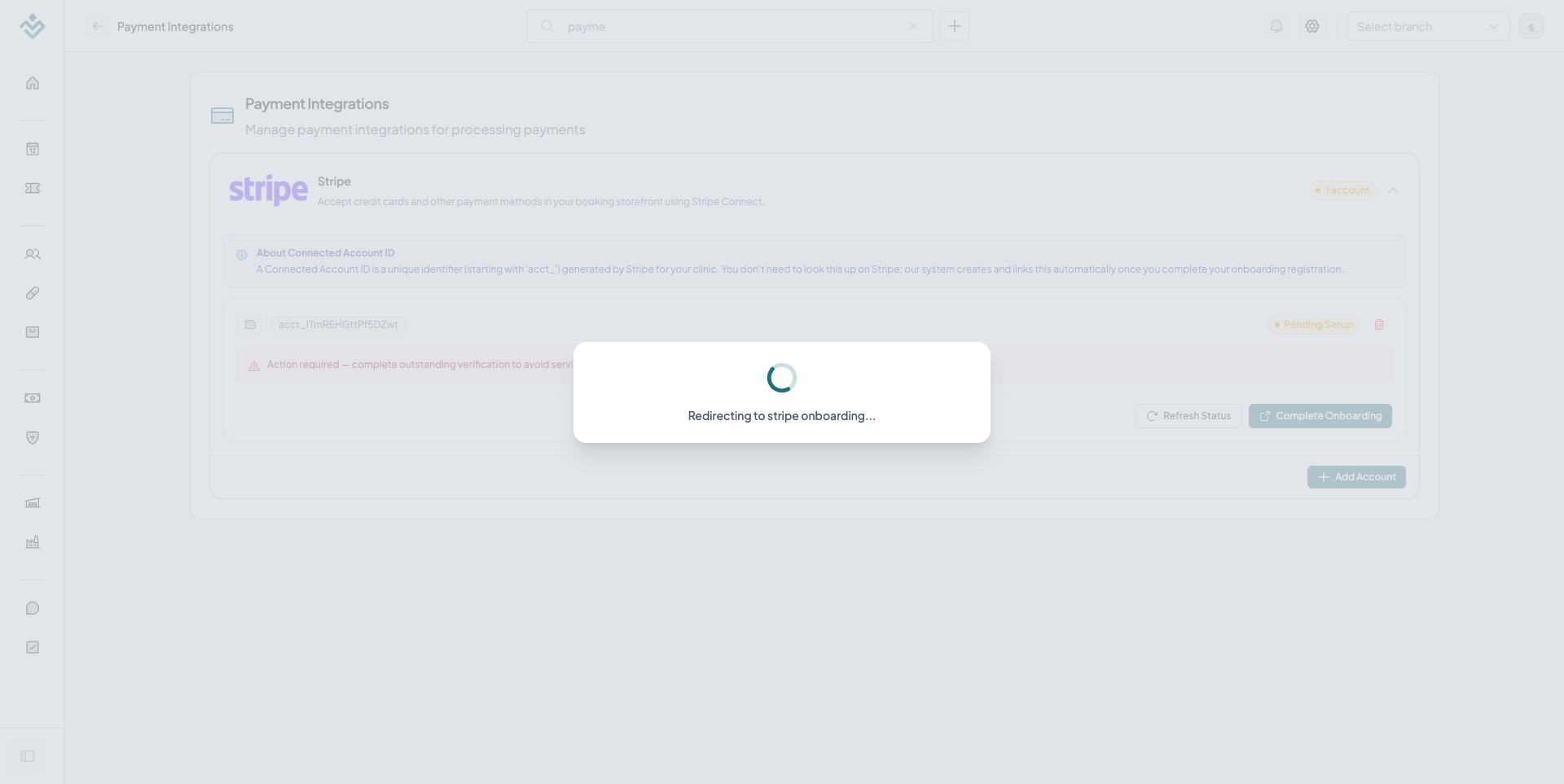
After confirming, the system displays a loading indicator while generating your Stripe Connect onboarding link:
- Wait for the page to redirect you to the official Stripe Hosted Onboarding portal.
- On the Stripe portal, enter or sign in with your email to link the account to your existing Stripe profile, or sign up to create a new one.
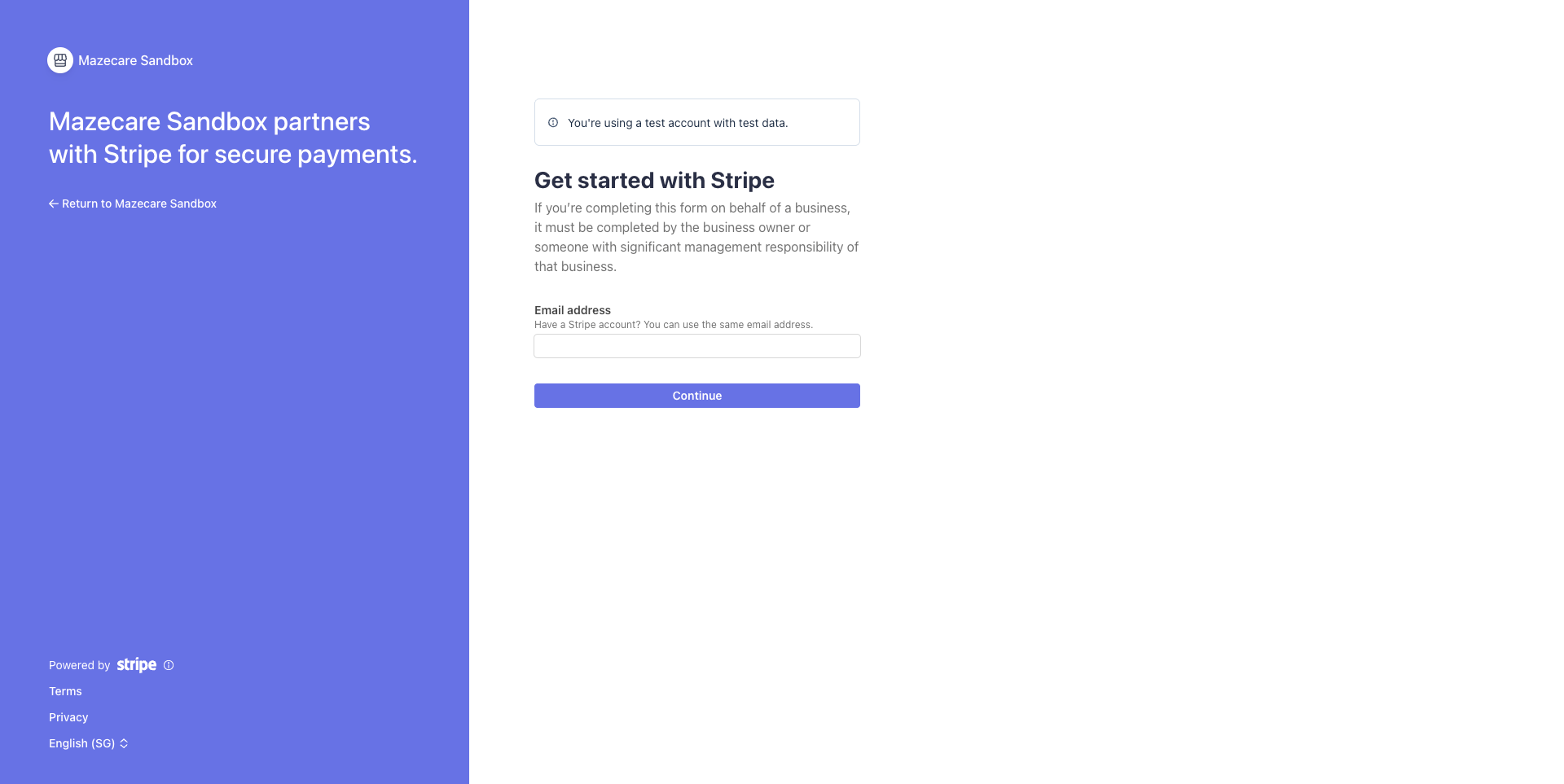
- Complete the required onboarding wizard steps:
- Business Details: Enter your legal business name, tax details (such as EIN, UEN, or local company registration numbers), business address, and industry.
- Personal Details: Provide details for the business representative or account owner (including identity verification if requested by Stripe).
- Payout Details: Enter your clinic’s bank account routing numbers or debit card details where payout deposits will be sent.
- Thoroughly review all entered details on the final summary screen to ensure accuracy.
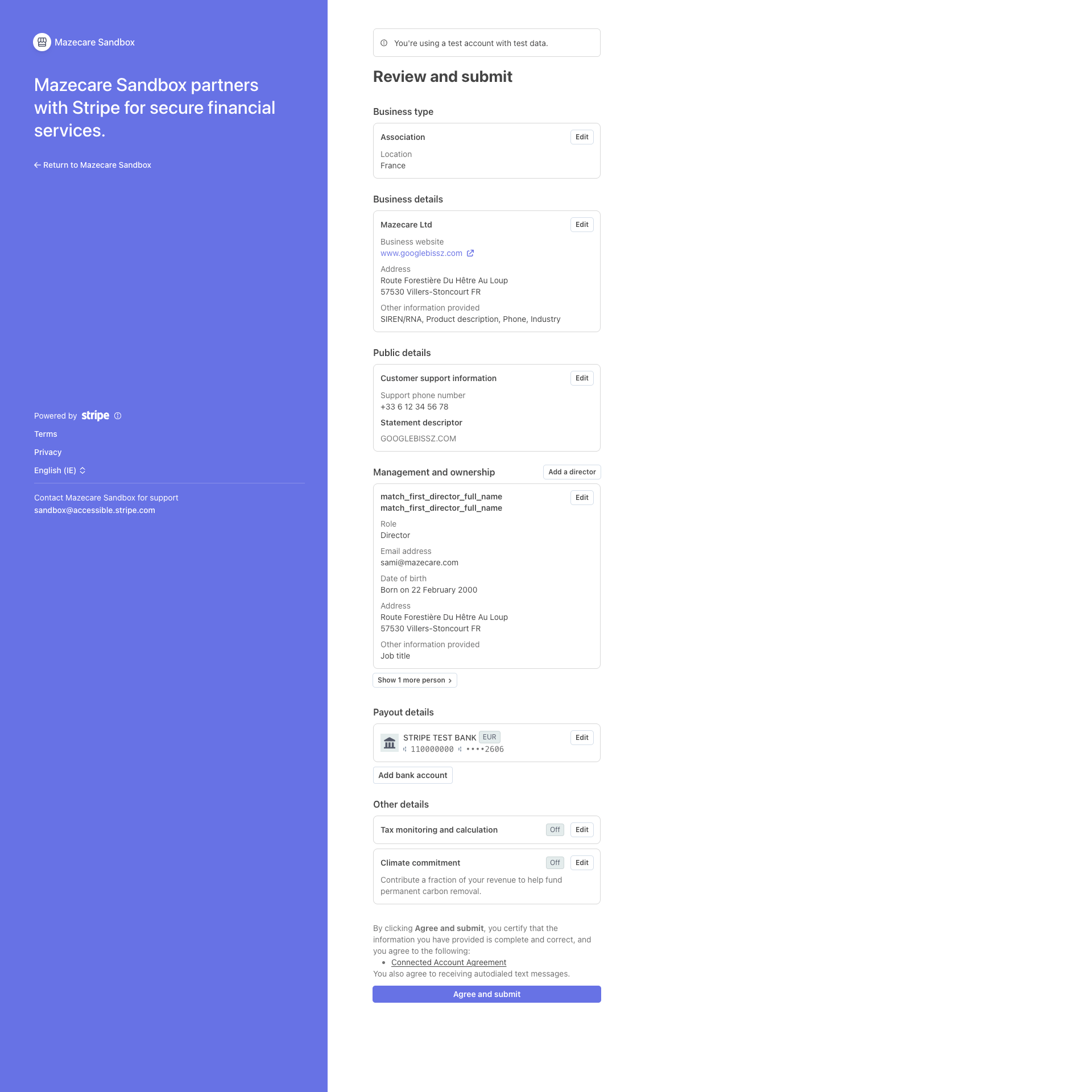
- Click Agree and Submit to return to the Mazecare OS platform.
Step 4: Verification and Status Tracking
After submission, Stripe will redirect you back to the Mazecare dashboard, which automatically refreshes to fetch the latest integration status:
- View the newly created Stripe account entry listed under the Stripe integration card.
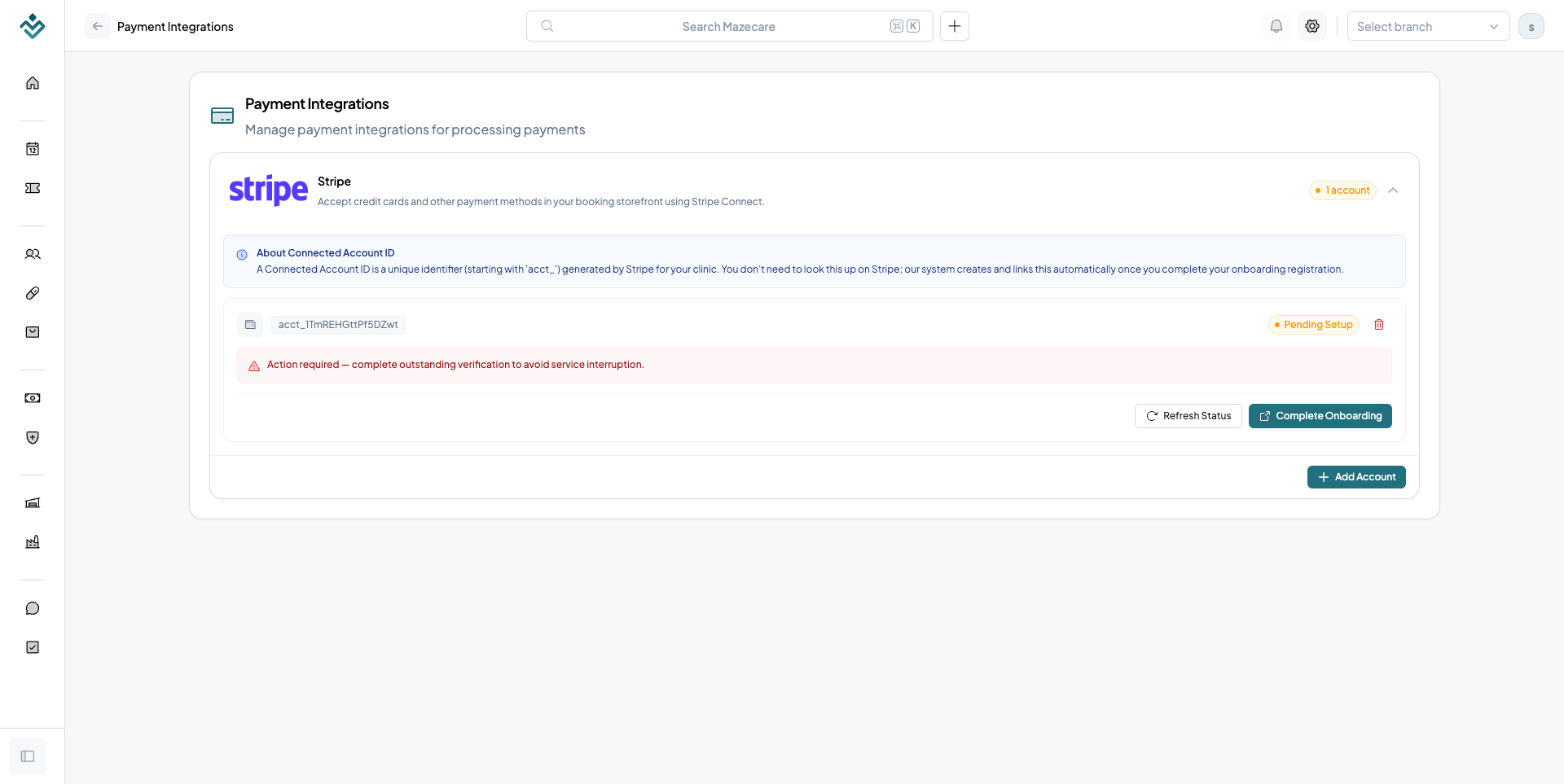
- Monitor the integration status badge. Depending on the verification state, the integration card will display one of the following states:
A. Pending Verification (Still in Progress)
If Stripe is still reviewing your business details, or if additional identity documents (such as a passport, identity card, or business registration certificate) are required, the status badge will display Pending Verification:
- Click the Refresh button (sync icon) located next to the status to fetch the latest verification updates from Stripe.
- Click the Complete Onboarding button to open the Stripe dashboard and submit any missing documentation.
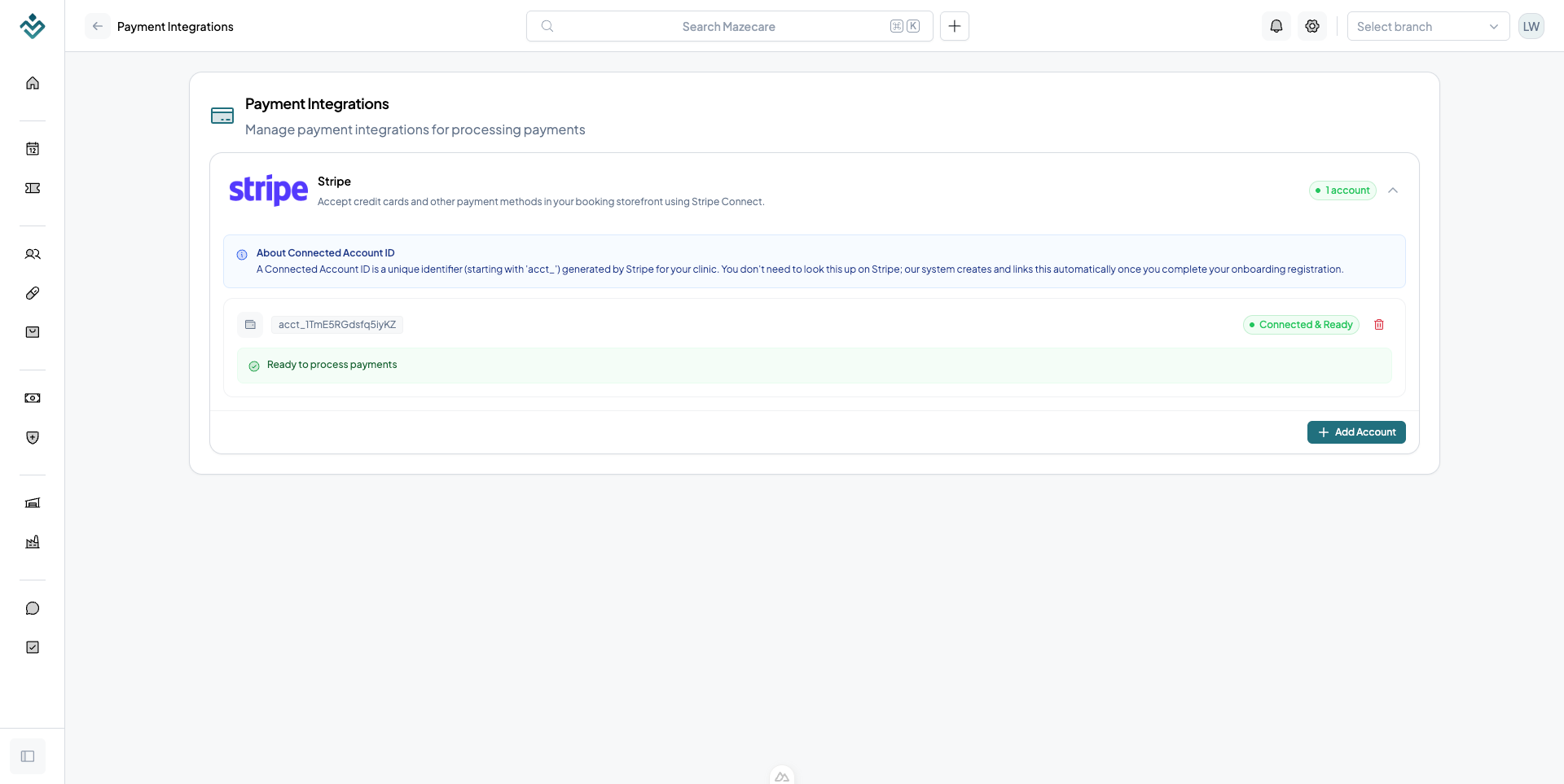
B. Ready (Fully Integrated)
Once all verification steps have been completed and approved by Stripe, the status badge will update to Ready:
- You are now fully authorized to process patient transactions and accept online self-booking deposits.
- The linked payment account can now be selected for clinic branches and doctors to route operational revenues.
API Keys
How to generate, manage, and revoke API keys in Mazecare, exchange them for OAuth tokens, and call platform APIs like listing appointments.
Google Integration
How to connect your Google account to Mazecare to sync calendars, detect appointment conflicts, and automatically generate Google Meet video consultation links.